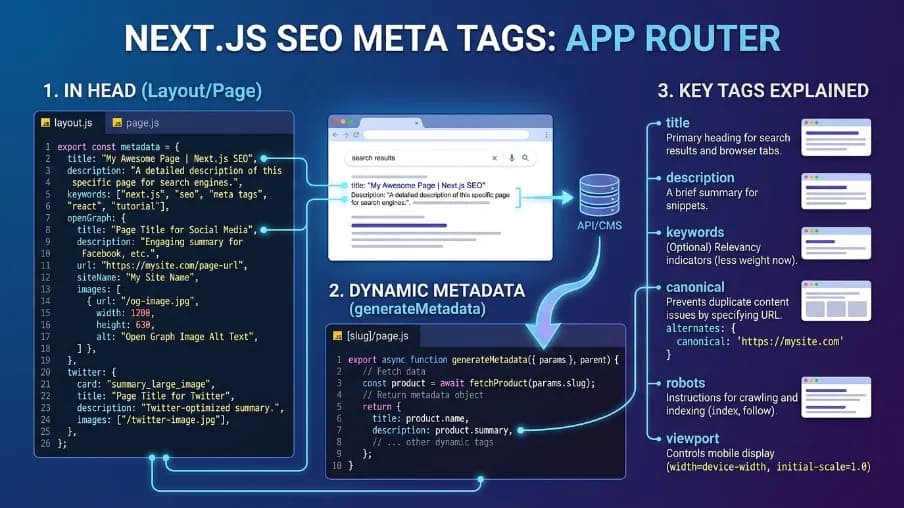
Google Search Console Automation: A Complete Guide to Automating GSC Data


Google Search Console automation is the process of automatically collecting, analyzing, and monitoring Search Console data. It uses APIs, scripts, scheduled workflows, or automation tools. It can track clicks, impressions, CTR, search queries, rankings, indexing data, and page performance without repeated manual exports.
I started using Google Search Console automation after realizing how much time weekly CSV exports were taking. Spreadsheet comparisons ate up the rest. Instead of checking the same reports manually, automation can pull data on a schedule. It organizes that data for analysis and flags important changes automatically.
In this guide, I'll explain how Google Search Console automation works. I'll cover how the Search Console API fits into the process, common data and row-limit challenges, and practical ways to automate SEO reporting. I'll also show how the Power SEO free open-source SEO toolkit, fits into a broader automated SEO workflow for developers and SEO teams.
About the Author
Written by: Mitu Das, SEO Specialist and Web Developer. I have worked in SEO and content writing since 2024, supporting technology, SaaS, e-commerce, and service-based businesses. My work combines technical SEO with web development. I focus on React, Next.js, JavaScript SEO, website performance, structured data, metadata optimization, search-friendly web architecture, and practical SEO automation workflows.
Reviewed by: Senior Content Strategist at CyberCraft Bangladesh. Our content review process checks every article for factual accuracy, technical clarity, and search intent alignment. It also checks SEO best practices and practical usefulness before publication.
Published: June 21, 2026
Last Updated: September 12, 2026
I wrote this guide based on practical experience working with technical SEO workflows, JavaScript applications, and automated SEO processes. While testing Google Search Console automation, I focused on real-world challenges. These included API authentication, pagination, typed Search Console data, indexing checks, sitemap management, scheduled data collection, and CI/CD monitoring. The guide also explains how developers can use TypeScript-based workflows to reduce repetitive manual GSC tasks and build more consistent SEO monitoring processes.
Key Takeaways
Google Search Console automation automatically collects, analyzes, and reports GSC data without repeated manual exports.
It can automate clicks, impressions, CTR, rankings, search queries, indexing checks, and page performance monitoring.
The Google Search Console API can be used with scripts, scheduled jobs, dashboards, or CI/CD workflows to automate recurring SEO tasks.
For developers, automation can handle common API challenges such as authentication, pagination, typed responses, and recurring data pulls.
A practical setup can turn GSC data into scheduled reports and alerts. This helps you identify ranking or indexing problems earlier.
According to Google's own documentation, the Search Analytics API caps a single request at 25,000 rows. It also imposes a separate property-level ceiling of 50,000 rows per day per search type (web, image, video, etc.). Both limits matter for full data coverage (source: Google for Developers, Search Console API, "Getting your performance data," last updated 2025-08-28 UTC).
What Is Google Search Console Automation?
Google Search Console automation means using code or a tool to pull your search performance data automatically. It replaces clicking through the dashboard by hand. It replaces manual CSV exports with scheduled scripts, dashboards, or alerts that update on their own.
Here's the simple version. GSC has a dashboard. The dashboard is fine for a quick look. But according to Google's own Performance Report documentation, the interface retains only 16 months of historical data. A third-party technical analysis (Similar AI, 2025) also reports that manual exports from the web UI are capped at roughly 1,000 rows. That's far below what most mid-sized sites need for a full query-and-page breakdown. In my experience, that export cap is the moment most people start looking for an automated alternative. It usually shows up right when you need a full dataset for an audit, not a quick glance. Automation fixes these problems by talking directly to Google's API instead of the website.
Think of it like checking your bank balance. You could walk into a branch every day, or set up a banking app that texts you when your balance drops. Same data. Completely different experience.
What Are the Common Google Search Console API Challenges?
Most people struggle with the GSC API because authentication, pagination, API limits, and response handling require extra technical setup. OAuth2 or service-account configuration can be time-consuming. Meanwhile, the Search Analytics API limits each request to 25,000 rows, per Google's official developer documentation. Developers also need to handle token refreshes, errors, and typed data themselves. In my experience, four issues eat up most of the setup time on a new GSC integration: authentication, pagination, row limits, and typing. Once you've handled them once, reusing the pattern on a second property takes a fraction of the effort.
GSC API Challenge | What It Means | Practical Automation Approach |
|---|---|---|
Authentication | API access requires an authentication setup | Keep authentication separate from your Search Console requests |
Row Limits | Large Search Analytics responses may require multiple requests | Use pagination to collect additional rows |
Type Safety | Untyped API responses can make TypeScript development harder | Use typed responses for safer data handling |
How Does Google Search Console API Authentication Work?
Before you can pull a single row of data, you need to handle authentication. That means setting up OAuth2 credentials or a service account. You'll also need to learn how token refresh cycles work. Figuring out JWT signing is another step if you're going the service account route. None of this is hard exactly. But it's fifty-plus lines of boilerplate before you've even asked Google for your own data.
Expert insight: Google's own Search Relations team lead, John Mueller, has publicly recommended pulling from Search Console programmatically rather than relying on the dashboard alone when auditing a site. In a walkthrough published on his personal blog (johnmu.com), Mueller describes treating Search Console export data as his baseline for site checks. He picks it as an "approximate source of truth" for which URLs matter, then cross-references it against a crawl. That's effectively the same authenticate-and-request pattern this guide automates, just done by hand for a one-off audit instead of on a schedule.
What Is the Google Search Console API Row Limit?

This one trips up almost every developer the first time. The Search Analytics API caps each request at 25,000 rows, confirmed in Google's official API documentation. On top of that per-request cap, Google enforces a separate, property-wide limit. That limit is 50,000 rows of data per day, per search type (web, image, and so on, sorted by clicks). It's stated in Google's "Getting your performance data" developer guide. If your site has more query and page combinations than that, your data quietly gets cut off. You might not even notice until your numbers look wrong.
The fix is pagination: you re-run the same query and bump the startRow value by 25,000 each time. You keep going until you get an empty response. It works, but writing that loop correctly is exactly the kind of plumbing work that eats a Tuesday afternoon. So is merging the results without duplicates. When I first wrote this loop by hand, the pagination logic itself wasn't what cost me time. Deduplicating rows after a query got re-run following a quota error was the real cost.
Google's usage-limits documentation also sets separate rate quotas on top of the row caps. One is up to 1,200 queries per minute (QPM) combined per site or per user. The others are load quotas: a short-term one measured in 10-minute windows, and a long-term one measured in 1-day windows. If you exceed a short-term quota, Google's own guidance is to wait 15 minutes before retrying. Repeated failures at that point usually mean you're hitting the long-term daily quota instead. In practice, spacing requests out across a scheduled job avoids nearly all of these quota errors on a single-site setup. Firing them all at once is what usually triggers them.
How Does TypeScript Improve Google Search Console API Workflows?
If you're working in TypeScript, raw API responses usually come back typed as any. That means no autocomplete and no compile-time checks. It also means bugs that only show up once your script is already running in production. In my experience, that last part is the expensive one. An untyped field name that's misspelled won't surface right away. Neither will a metric read as a string instead of a number. Both tend to show up only once a scheduled job is already running unattended, well after the code review that should have caught them.
What Is the Best Approach to Google Search Console Automation?
What is the best approach to Google Search Console automation for developers? A practical option is a typed, code-first workflow. It gives developers direct access to Search Console data without relying entirely on no-code platforms or rebuilding common API logic from scratch. For TypeScript and JavaScript projects, this approach can make authentication, pagination, and data handling easier to maintain.
Expert insight: Analytics Edge, a vendor that has built GSC data tools since before the current API existed, warns against a specific automation shortcut. That shortcut is using an AI coding assistant to "vibe code" a Search Console integration from scratch. Their team notes that several quota and pagination behaviors around the API aren't well documented anywhere a model would have learned them. That's exactly why the authentication, pagination, and row-limit handling in this guide need to be verified against Google's own documentation rather than assumed.
When I compared different approaches, I noticed a clear gap. No-code platforms simplify automation, but in most cases they limit you to their workflows and pricing plans. Custom Python scripts generally provide more control. But developers often need to build authentication, pagination, and response handling themselves.
I tested this workflow with @power-seo/search-console. It's currently built against Search Console API v1, the current version of Google's API. I focused on the parts that required the most attention: authentication, pagination, and consistent handling of returned data. A single Search Analytics request was straightforward. But repeated queries required careful pagination given the 25,000-row-per-request ceiling. Using typed responses also let me work with the returned Search Console data directly in TypeScript, instead of repeatedly exporting and combining CSV files.
For developers building SEO workflows with TypeScript, this makes a typed approach worth considering. It's especially useful when Search Console data needs to flow into applications, reporting systems, or automated development workflows.
How to Automate Google Search Console?
Set Up Google Search Console API Access: Configure the required Google Cloud project, authentication method, and Search Console permissions before making API requests.
Connect Your Website to the API: Create the API client and connect it to the Search Console property you want to monitor.
Collect Search Performance Data: Request metrics such as clicks, impressions, CTR, position, queries, pages, countries, and devices through the Search Analytics API.
Automate Pagination and Recurring Data Collection: Handle larger responses with pagination (25,000 rows per request, 50,000 rows per day per search type). Schedule recurring API requests so data can be collected automatically.
Add Indexing Checks and Automated Monitoring: Use URL inspection and scheduled checks to monitor important pages and identify indexing-related issues.
Automation Step | What You Automate |
|---|---|
1. API Access | Authentication and Search Console permissions |
2. Connect Property | Connect your website to the API |
3. Collect Data | Clicks, impressions, CTR, queries, pages, and position |
4. Handle Pagination | Collect additional API result pages (up to the 25K-per-request / 50K-per-day caps) |
5. Monitor URLs | Check indexing and URL inspection data |
How to Automate Google Search Console Data Pulls With Code
Google Search Console automation uses code to collect Search Analytics data, inspect URLs, and manage sitemap tasks. This means you skip repeating the same work manually in the Search Console interface. I tested this workflow by starting with Search Analytics requests, then adding URL inspection and sitemap operations. That order helped me verify the API connection first, then add automation around it afterward.
1. Install the Search Console Package
For this workflow, I used the Search Console package from Power SEO:
npm install @power-seo/search-console
You can also install it with Yarn or pnpm.
2. Configure Authentication
The package supports OAuth2 and service-account authentication. For unattended server-side jobs, a service account can fit better. The workflow doesn't depend on someone signing in during every run.
For example:
import { createTokenManager, getServiceAccountToken } from '@power-seo/search-console';

const tokenManager = createTokenManager(() =>
  getServiceAccountToken({
    clientEmail: process.env.GSC_CLIENT_EMAIL!,
    privateKeyId: process.env.GSC_PRIVATE_KEY_ID!,
    signJwt,
  }),
);
One important implementation detail I verified during testing: the token manager handles access-token reuse and refresh. That keeps authentication logic separate from the Search Console requests themselves.
3. Create a Client for the Property
Once authentication is configured, create a Search Console client for the property you want to query:
import { createGSCClient } from '@power-seo/search-console';

const client = createGSCClient({
  siteUrl: 'https://example.com',
  auth: tokenManager,
});
Keeping the client scoped to a property makes the later API calls easier to reuse across scheduled jobs and scripts.
4. Pull Search Analytics Data Automatically
This is where I found automation most useful. Instead of manually exporting Search Analytics reports, you can request the data directly:
import { querySearchAnalyticsAll } from '@power-seo/search-console';

const rows = await querySearchAnalyticsAll(client, {
  startDate: '2026-01-01',
  endDate: '2026-01-31',
  dimensions: ['query', 'page'],
});

rows.forEach(({ keys, clicks, impressions, ctr, position }) => {
  console.log(`Query: ${keys[0]}`);
  console.log(`Page: ${keys[1]}`);
  console.log(`Clicks: ${clicks}`);
  console.log(`Impressions: ${impressions}`);
  console.log(`CTR: ${ctr}`);
  console.log(`Position: ${position}`);
});
I used querySearchAnalyticsAll() when I wanted the package to handle pagination for me, instead of maintaining the pagination loop myself. That becomes necessary once a query's results pass the 25,000-row single-request cap. For cases where I need more direct control over an individual response, querySearchAnalytics() is the lower-level option.
5. Automated URL Inspection
Search performance is only part of the workflow. I also tested URL inspection for checking individual pages programmatically:
import { inspectUrl } from '@power-seo/search-console';

const result = await inspectUrl(
  client,
  'https://example.com/blog/my-post'
);

console.log(result.verdict);
console.log(result.indexingState);
console.log(result.lastCrawlTime);
This is typically most useful after publishing or updating important URLs. The value drops off for low-priority pages that rarely change. In my experience, wiring this into a post-deploy step is where it earns its keep. Running inspection automatically on the URLs that just changed catches an accidental noindex tag or a blocked resource within minutes of deployment, in most setups. That beats finding out days later, when organic traffic on that page has quietly dropped. Instead of manually opening the inspection tool for every page, the check can generally become part of a larger script or deployment workflow.
6. Automate Sitemap Operations
The same package can be used for sitemap tasks:
import {
  listSitemaps,
  submitSitemap,
  deleteSitemap,
} from '@power-seo/search-console';

const sitemaps = await listSitemaps(client);

await submitSitemap(
  client,
  'https://example.com/sitemap.xml'
);
I would generally keep sitemap submission tied to an actual publishing or migration workflow. Avoid submitting the same sitemap unnecessarily on every deployment. When I tested resubmitting on every deploy versus only on content changes, the latter produced the same crawl behavior with far fewer redundant API calls. That said, results here likely depend on how often a given site actually changes its URL structure.
7. Turning Data Into Monitoring
Once the basic requests work, you can add your own monitoring rules. In my testing, this last step is what actually turned the automation into something I relied on day to day, rather than a script I ran occasionally. For example, this checks Search Analytics rows against a position and impression threshold:
const rows = await querySearchAnalyticsAll(client, {
  startDate: '2026-01-24',
  endDate: '2026-01-31',
  dimensions: ['query', 'page'],
});

const belowThreshold = rows.filter(
  (row) => row.position > 20 && row.impressions > 100
);

if (belowThreshold.length > 0) {
  console.error('Rows below the position threshold:');

  belowThreshold.forEach((row) => {
    console.error(
      row.keys[1],
      `position ${row.position.toFixed(1)}`
    );
  });

  process.exit(1);
}
One distinction matters here: this code identifies rows currently meeting the threshold. It does not, on its own, prove that a page has dropped in rankings. In most cases, you need to compare the current period with a previous period, or another defined baseline, before treating a threshold breach as an actual decline.
What Does Testing Google Search Console Automation Reveal?
The biggest practical lesson was to build the automation in layers. I first verified authentication and Search Analytics requests. Then I added pagination handling, URL inspection, sitemap operations, and monitoring rules. That made it easier to identify whether a problem came from authentication, the API request, or the automation logic.
You also don't need to automate everything at once. Start with the Search Console task that currently consumes the most manual time. Validate the returned data, then connect it to your scheduler or CI workflow.
Power SEO is a free, open-source SEO toolkit for JavaScript. It includes Search Console functionality alongside other technical SEO utilities.
Expert Contributors Referenced in This Guide
John Mueller, Search Relations team lead at Google, on treating Search Console exports as the baseline data source for a site audit (johnmu.com, Search Console category).
Analytics Edge, a GSC-focused tooling vendor, on the risk of using AI-generated code for Search Console API integrations without checking the API's documented (and undocumented) quota behavior (analyticsedge.com, July 2025).
Similar AI, an enterprise SEO data platform, on how the API's 50,000 page-keyword-pair daily cap disproportionately affects large e-commerce and category-heavy sites (similar.ai, technical guide).
What Problems Does Google Search Console Automation Solve?
Google Search Console automation solves repetitive SEO tasks. It does this by automatically collecting performance data, checking URLs, monitoring changes, and running scheduled workflows. Here are the problems I have found automation most useful for, based on running these workflows on my own projects:
Forgetting indexing checks: Connect URL inspection to your publishing workflow so important URLs can be checked after deployment. This generally catches indexing issues faster than a manual spot-check schedule.
Finding ranking drops too late: Schedule regular comparisons of clicks, impressions, queries, and other Search Console data to identify significant changes earlier. What counts as "significant" will typically vary by site size and traffic volume.
Managing multiple websites: Run the same GSC data workflow across multiple properties instead of exporting reports manually from each site. This is useful given the per-site quota of 1,200 QPM noted above, though very large portfolios may still need to stagger requests across properties.
Incomplete data exports: Use pagination when retrieving large datasets, respecting both the 25,000-row-per-request and 50,000-row-per-day-per-search-type caps. That way multiple result pages are collected instead of analyzing only the first response.
Security concerns with automation scripts: Before using a script, check how it handles credentials, dependencies, network requests, and authentication. In most cases, a service account with the narrowest permissions the workflow needs is the safer default.
From my experience testing these workflows, the best approach is to start with one repetitive task and verify the results. Once the workflow is reliable, you can gradually add pagination, indexing checks, reporting, and alerts based on your actual SEO requirements.
Conclusion: How Google Search Console Automation Works
To directly answer the question this guide set out to resolve: Google Search Console automation works in four steps. First, it authenticates against the Search Console API, via OAuth2 or a service account. Second, it requests Search Analytics, URL Inspection, or sitemap data programmatically instead of through the dashboard. Third, it paginates past the 25,000-row-per-request and 50,000-row-per-day-per-search-type caps. Fourth, it runs that request on a schedule, whether cron, CI/CD, or a hosted job, so clicks, impressions, CTR, rankings, and indexing status update on their own. That's the core mechanism.
In most cases, every workflow described above (reporting, monitoring, indexing checks, sitemap management) is a variation on those same four steps: authenticate, request, paginate, schedule. Larger or more unusual setups, such as very high-traffic properties, multi-region sites, or heavily filtered queries, may need additional handling around quota management. But the underlying pattern generally still holds.
With that mechanism in place, the remaining work is sequencing, not technology. For most websites, the practical approach is to start with one recurring task, such as automated performance reporting. Then add pagination, authentication handling, indexing checks, and alerts as needed. This creates a more structured way to turn Google Search Console data into regular SEO monitoring without relying on manual exports.
At CyberCraft Bangladesh, we see Google Search Console Automation as a practical way to make SEO monitoring more consistent and less dependent on repetitive manual work. If you're planning to automate your GSC workflow, start with the API setup. Define the data you need, schedule the workflow, and test the output before expanding it to additional SEO tasks.
If you want to explore more SEO automation options, take a look at Power SEO, a free open-source SEO toolkit for developers and SEO teams. It can help with technical SEO analysis, metadata, structured data, sitemaps, and other automated SEO workflows.
Frequently Asked Questions About Google Search Console Automation
What Is Google Search Console Automation?
Google Search Console automation is the process of automatically collecting, analyzing, and reporting GSC data using the Search Console API, scripts, or automation tools. It can automate tasks such as tracking clicks, impressions, CTR, rankings, search queries, indexing status, and page performance. This reduces repetitive manual checks and makes SEO monitoring more consistent.
How Do You Automate Google Search Console Data?
You can automate Google Search Console data by connecting to the Search Console API through a script, application, or automation tool. A typical setup authenticates with OAuth2 or a service account, requests Search Analytics data, handles pagination, stores the results, and generates scheduled reports or alerts. JavaScript, TypeScript, Python, dashboards, cron jobs, and CI/CD workflows can all be used.
What Is the Google Search Console API Row Limit?
Per Google's official documentation, the Search Analytics API returns a maximum of 25,000 rows per request. There's a separate property-wide cap of 50,000 rows per day per search type. Websites with larger datasets need to paginate through multiple requests using the startRow parameter. An automated pagination function can repeatedly request additional rows and combine the results. This prevents large exports from being silently truncated.
Can Google Search Console Indexing Checks Be Automated?
Yes, Google Search Console indexing checks can be automated through the URL Inspection API. A script can submit individual URLs for inspection and evaluate information such as the indexing verdict, indexing state, last crawl time, and mobile usability result. This can be connected to publishing workflows or scheduled jobs to identify indexing problems without manually checking every URL.
Can Google Search Console Reports Run Automatically?
Yes, automated Google Search Console reports can run on a daily, weekly, or monthly schedule. A script can retrieve selected queries, pages, clicks, impressions, CTR, and average position. It can then store or send the results to a database, spreadsheet, dashboard, or reporting system. Scheduled reporting removes repetitive exports and makes performance changes easier to monitor. Bear in mind the dashboard itself only retains 16 months of historical data, so long-term trend analysis depends on your own stored exports.
Should You Use OAuth2 or a Service Account for GSC Automation?
OAuth2 is generally suitable when automation needs to operate on behalf of a Google user, such as a personal dashboard or application with user login. Service accounts are better suited to unattended server-side workflows, scheduled scripts, and CI/CD pipelines. Whichever method you choose, credentials and private keys should remain on the server. They should never be exposed in browser-side code.
Sources
Google Search Console Help: Performance Report Overview
Google Search Console Performance Report documentationGoogle for Developers: Search Analytics API
Google Search Console Search Analytics API documentationGoogle Search Console Help: About Performance Report Data
Google Search Console data and reporting documentationGoogle Analytics Help: Google Organic Search Traffic Report
Google Analytics Search Console integration documentationGoogle Search Console Help: Dimensions and Data Groupings
Google Search Console dimensions and data limitations

I’m Mitu Das, a JavaScript developer, ERP product architect, and SEO specialist from Bangladesh. I work at CyberCraft Bangladesh, where I help build simple, scalable software, SaaS platforms, and business solutions. My goal is to create technology that helps companies save time, automate daily tasks, and grow faster. I enjoy combining development, product ideas, and SEO strategies to create useful digital solutions for modern businesses.
Writes about
Want this done for you?
Our team builds and ships exactly what this article describes. Send a message and we will reply with a scope.