
How to Use AI Automation: A Complete Step-by-Step Guide for 2026


To use AI automation, you pick a repetitive task, choose a workflow platform like Zapier or Make, connect an AI model like Claude or GPT to handle the intelligent processing step, and set up a trigger that kicks the whole thing off automatically. The result is a system that works without you having to touch it all the time.
That is the core of it. If you’re wondering how to use AI automation effectively, the rest of this guide explains how to do each of those steps properly so your automation works in the real world.
What Is AI Automation
AI automation is the process of using artificial intelligence to perform tasks that would otherwise require human effort. It combines machine learning, natural language processing, and workflow tools to handle repetitive, time-consuming work automatically. Unlike traditional automation that follows fixed rules, AI automation can read unstructured information, make context-aware decisions, and produce intelligent outputs like drafted emails, scored leads, or extracted data. It does not replace human thinking entirely. It handles the predictable, high-volume work so your team can focus on the decisions and conversations that genuinely need a person behind them.
How to Use AI Automation

Most people searching for how to use AI automation are not looking for a dictionary definition. They want to know one of three things.
First, they want to know where to start because they have heard about AI automation but have no idea how to actually set it up.
Second, they want to know which tools to use because there are dozens of options and they do not want to waste money on the wrong one.
Third, they want to see real examples because abstract explanations are not enough. They need to see what it looks like in practice before they feel confident enough to try it themselves.
This guide answers all three. By the end, you will know exactly how to use AI automation in your own work, which tools fit your situation, and what a working automation looks like from start to finish.
Step 1: Understand What You Are Actually Setting Up
Before you touch any tool, you need to understand what an AI automation actually consists of. This is the part most beginner guides skip, and it is exactly why people get confused when they try to build their first workflow.
Every AI automation has three parts working together.
The trigger is the event that starts the automation. A new email arrives. A form gets submitted. A file is uploaded. A date and time is reached. The trigger is what tells the system that something has happened and it is time to act.
The AI step is where the intelligence happens. This is where an AI model reads the content of that email, extracts information from that form, analyses that file, or generates a response. Without this step, you just have traditional automation. The AI step is what makes the system capable of handling real-world, unpredictable inputs.
The action is what the system does with the AI output. It sends a reply, updates a record in your CRM, creates a task in your project management tool, posts a message to Slack, or stores the extracted data in a spreadsheet.
Once you see how to use AI automation through this three-part lens, every tool and every tutorial starts making much more sense. You are always looking for the same three things: what starts it, what the AI does with it, and what happens as a result.
Step 2: Choose the Right Tool for Your Situation
Knowing how to use AI automation means picking the right platform for where you are right now, not where you might be in two years. Here's a straightforward breakdown.
Use Zapier: If you are completely new to automation, you want to get something working today without learning a new interface, and your processes are relatively straightforward. Zapier connects over 6,000 apps and has built-in AI actions so you can summarise, classify, or generate content inside your workflows without writing any code.
Use Make (formerly Integromat): If you need more control over how your data flows, your process has multiple branches or conditions, and you are comfortable spending a couple of hours learning a slightly more complex interface. Make is significantly more powerful than Zapier for complex workflows and more affordable at scale.
Use n8n: If you are technically comfortable, you want to self-host your automation for privacy reasons, or you need deep customisation that paid platforms do not offer. n8n is open source, free to self-host, and has strong support for AI agents.
Use the Anthropic API or OpenAI API directly: If you are a developer or working with a developer, and you want to build AI automation into your own application or internal tool rather than using a third-party workflow platform.
For most people reading this guide, Zapier or Make is the right starting point. Pick one and stick with it. Switching platforms halfway through is the single biggest time-waster when learning how to use AI automation.
Step 3: Find the Right Process to Automate First
The process you choose for your first automation matters more than people realise. Choose something too complex and you will spend weeks debugging. Choose something too simple and you will not see enough value to stay motivated.
The ideal first automation has three qualities.
It happens frequently. If a task only occurs once a month, automating it is not worth the setup time right now. Look for something that happens at least several times a week, ideally daily.
The input is reasonably consistent. AI automation handles variability well, but your first automation should not be your hardest one. Pick a process where the incoming information follows a general pattern, even if it is not perfectly uniform.
The time cost is real. If the task takes 30 seconds, automating it will not change your life. Look for something that genuinely eats into your day, whether that is writing similar emails over and over, manually moving data between systems, or generating the same type of report on a regular schedule.
Common first automations that check all three boxes include responding to frequently asked customer questions, routing incoming leads to the right team member based on their request type, extracting data from incoming emails or documents and logging it somewhere structured, generating first drafts of recurring content like weekly summaries or status reports, and sending personalised follow-up messages after a trigger event like a form submission or a purchase.
Step 4: Build Your First AI Automation
Here is a concrete example of how to use AI automation to handle incoming customer support emails. This is one of the most common starting points and works on both Zapier and Make.
What this automation does: When a customer sends a support email, the AI reads it, decides whether it is urgent or routine, drafts an appropriate reply, and either sends it automatically or places it in a queue for human review depending on the urgency level.
How to build it:
Start by creating a new workflow in Zapier or Make and set the trigger to "New Email Received" in whatever email tool you use, whether that is Gmail, Outlook, or a helpdesk like Freshdesk.
Next, add an AI step. In Zapier, this is the built-in AI action. In Make, you connect to the Anthropic or OpenAI API. Write a prompt that tells the AI what to do with the email content. A simple prompt looks like this: "Read the following customer email and do two things. First, classify it as urgent or routine based on whether the customer is expressing frustration or reporting a critical problem. Second, write a helpful, professional reply that addresses their question directly."
Then add a condition step that checks the AI classification. If the email is classified as urgent, route it to a human agent immediately via Slack or email notification. If it is routine, send the AI-drafted reply automatically.
That is a working AI automation. It is not perfect on day one, but it works. You refine the prompt over the following days as you see how the AI handles real emails, and within a week you have something that genuinely saves your team hours.
Step 5: Write Prompts That Make Your Automation Reliable
One of the most practical things to understand about how to use AI automation is that the quality of your prompt determines the quality of your output. A vague prompt produces unreliable results. A specific prompt produces consistent, usable output.
Here are the principles that make automation prompts work well.
Tell the AI exactly what format to respond in. If you need the AI to return a classification and a draft reply, say so explicitly. Tell it to return the classification first, then the reply, with a clear separator between them so your workflow can parse the two pieces reliably.
Give the AI context about who it is responding to. Instead of saying "write a reply," say "write a reply on behalf of a customer support agent at a software company. The tone should be helpful and professional. Keep it under 150 words."
Tell the AI what to do when it is unsure. If the email is ambiguous, should the AI classify it as urgent or routine by default? Make that decision in your prompt so the AI does not produce inconsistent results when edge cases appear.
Test with real examples before you go live. Copy actual emails from your inbox and run them through the prompt manually before building the full automation. This saves a lot of debugging time later.
Step 6: Connect AI Automation to the Tools You Already Use
Learning how to use AI automation becomes much more valuable when the output connects to the tools your team already lives in. Here is how that works in practice across common business tools.
CRM systems like HubSpot or Salesforce: Use AI automation to score incoming leads based on the information they submit, write personalised follow-up email drafts, and update contact records automatically when new information comes in through a form or email.
Project management tools like Asana, Notion, or Monday: Use AI automation to create tasks from emails or messages, generate project briefs from a short set of inputs, and send status update summaries to stakeholders on a schedule.
Communication tools like Slack or Microsoft Teams: Use AI automation to route alerts to the right channel based on content, summarise long email threads or documents and post the summary where your team can see it, and send daily briefings compiled from multiple data sources.
Spreadsheets and databases: Use AI automation to extract structured data from unstructured inputs like emails, PDFs, or form responses and log it directly into a Google Sheet, Airtable base, or Notion database without any manual copy-pasting.
The key principle here is that AI automation should reduce the number of times someone has to switch between tools or manually move information from one place to another. Every manual transfer of information is a candidate for automation.
Step 7: Measure Whether Your Automation Is Actually Working
Many people learn how to use AI automation, build their first workflow, turn it on, and then never look at it again. That is a mistake. Automation requires monitoring, especially in the early weeks.
Here is what to track.
Volume processed: How many items is the automation handling per day or week? This tells you whether the trigger is firing correctly.
Error rate: What percentage of runs produce an error or an output that required human correction? A high error rate usually means your prompt needs refinement or your trigger conditions are too broad.
Time saved: Estimate how long the automated task would have taken a person. Multiply by volume. This is your weekly time saving and the clearest way to communicate the value of automation to a manager or client.
Edge cases flagged: Keep a log of situations where the AI produced an unexpected or incorrect output. These are your prompt improvement opportunities. Every edge case you account for makes the automation more reliable.
Most workflow platforms including Zapier, Make, and n8n have built-in run history logs. Check them at least twice a week during the first month. After that, a weekly review is usually enough to catch any issues before they become problems.
Real Examples of Using AI Automation

These examples reflect how businesses are applying AI automation in 2026, across a range of sizes and industries.
Freelancers and consultants: Automate client onboarding by building a workflow that triggers when a new client fills out an intake form, uses AI to generate a personalised welcome email and a project brief draft, creates a folder structure in Google Drive, and adds the client to your CRM automatically.
E-commerce businesses: Automate your customer support by intelligently routing product inquiries, order issues, and return requests to the right response templates while AI generates personalized replies using each customer’s order history from your store platform. All of this seamlessly fits into your broader digital growth strategy, helping you scale support without sacrificing customer experience.
Marketing agencies: Automate content production by building a workflow that takes a brief submitted through a form, uses AI to generate a first draft in your brand voice, saves it to a shared document, and notifies the assigned writer that it is ready for review.
HR teams: Automate recruitment screening by building a workflow that triggers when a new application arrives, uses AI to score the CV against the job criteria, sends a personalised acknowledgement to the applicant, and adds the scored application to a shared review sheet ranked by fit.
Finance teams: Automate invoice processing by building a workflow that detects incoming PDF invoices via email, uses AI to extract the vendor name, invoice number, amount, and due date, logs the data into your accounting system, and flags any invoices above a set threshold for manual approval.
Common Mistakes
Learning how to use AI automation well is as much about avoiding common pitfalls as it is about building the right workflows. Here are the mistakes that trip up most teams.
Automating a broken process: If your manual workflow is disorganised, automating it will only make the mess happen faster. Before building an automation, map the ideal version of the process. Fix the logic first, then automate it.
Over-relying on AI accuracy from day one: AI models are highly capable but not infallible. Always build a human review step for high-stakes outputs, particularly anything involving financial data, medical information, or customer-facing communication. Start with AI-assisted workflows where a human approves the output before moving to fully autonomous execution.
Ignoring change management: Automation changes how people work. Teams that feel blindsided or threatened by new workflows resist them. Involve your team early, explain what is being automated and why, and be transparent about how roles will shift. The people closest to a process often have the best insight into what can and cannot be automated.
Treating automation as a one-time project: AI workflow automation requires ongoing maintenance. Models improve, APIs change, and your business processes evolve. Schedule quarterly reviews of your automations to check performance, update prompts, and decommission anything that no longer serves its purpose.
How Much Does It Cost to Use AI Automation
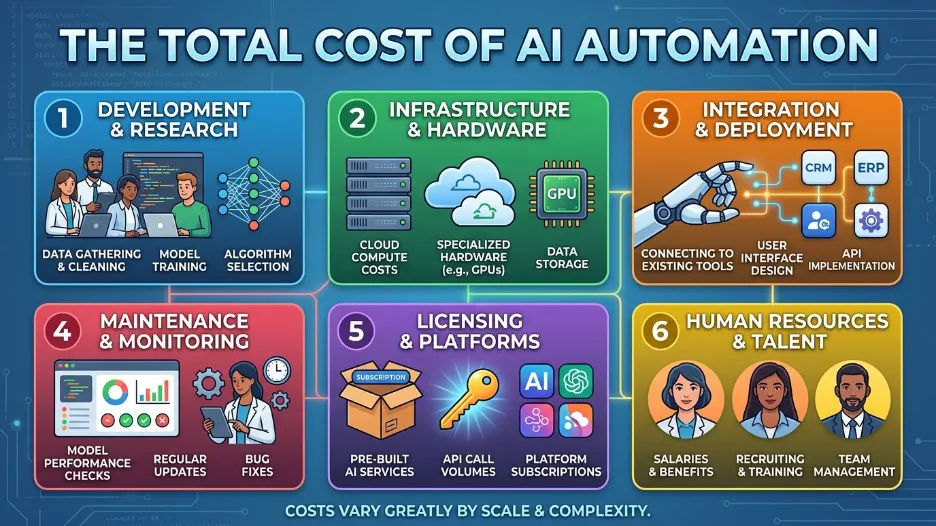
One of the most common questions from people learning how to use AI automation is whether they can start without spending money. The honest answer is yes, within limits.
Free options available right now: Zapier has a free plan that allows a small number of single-step workflows per month. Make has a free plan with 1,000 operations per month, which is enough to test your first automation properly. n8n is completely free if you self-host it. These free tiers are genuinely useful for learning and for low-volume workflows.
What you will likely pay as you grow: Once your automations are running regularly and handling real volume, you will typically need a paid plan. Zapier's starter plan begins around $20 per month. Make's basic plan starts around $10 per month. These costs are modest relative to the time savings most automations deliver within the first month.
AI model API costs: If your automation calls an AI model directly via API, you pay per use. For most small business workflows, this adds a few dollars per month at most. High-volume automations that process thousands of items per day will cost more, but the savings in staff time still far outweigh the API cost in almost every case.
The real cost is setup time, not subscription fees: Budget two to four hours for your first automation. After that, most automations take under an hour to build once you know your way around the platform. The financial cost is low. The time investment in learning is where most people underestimate the commitment.
Final Thoughts
Learning how to use AI automation is one of the highest-leverage skills you can develop in 2026. Not because it is complicated, but because once you understand the three-part structure of trigger, AI step, and action, you will start seeing automation opportunities everywhere you look.
The businesses and individuals pulling ahead right now are not doing anything out of reach. They picked one process, built the simplest version of an automation that worked, measured it, improved it, and moved on to the next one. That cycle is available to anyone willing to spend a few hours getting the first one running.
Start with one task. Use Zapier or Make if you are new to this. Write a specific prompt. Turn it on and watch what happens. That is genuinely how to use AI automation in a way that creates lasting value.
Frequently Asked Questions About How to Use AI Automation
How long does it take to set up an AI automation for the first time?
For a straightforward automation on Zapier or Make, most people get their first workflow running within two to four hours including the time spent learning the interface. More complex workflows with multiple branches and conditions can take a full day or more. The setup time drops significantly with each automation you build after the first one.
Do I need coding skills to use AI automation?
No. Zapier and Make are no-code platforms designed for people without a programming background. You build workflows by clicking and connecting steps visually. The only part that requires written input is the AI prompt, which is plain English. If you want to build custom integrations or self-host your automation with n8n, some technical knowledge helps but is not required for the basics.
What is the difference between AI automation and regular automation?
Regular automation follows fixed rules. If the input changes in an unexpected way, it breaks. AI automation uses a language model to handle the intelligent processing step, which means it can read and understand unstructured content, make judgement calls, and produce human-quality output like drafted emails or summaries. That is the core difference.
How do I know if my AI automation is producing good output?
Check the run logs regularly in the first few weeks. Review a sample of the AI outputs manually to confirm they meet your quality standard. Set up a human review step for any outputs that are customer-facing or financially significant until you have enough confidence in the AI output quality to let it run fully autonomously.
Can I use AI automation if my business is very small?
Yes, and small businesses often benefit the most from AI automation because every hour saved has a direct impact on capacity. You do not need a large team or a big budget to start. A single Zapier account and access to an AI model API is enough to build automations that save several hours per week.

I’m Mitu Das, a JavaScript developer, ERP product architect, and SEO specialist from Bangladesh. I work at CyberCraft Bangladesh, where I help build simple, scalable software, SaaS platforms, and business solutions. My goal is to create technology that helps companies save time, automate daily tasks, and grow faster. I enjoy combining development, product ideas, and SEO strategies to create useful digital solutions for modern businesses.
Writes about