Core Web Vitals SEO: Complete Guide to Metrics, Testing & Optimization


Core Web Vitals SEO refers to optimizing a website's loading speed, interactivity, and visual stability so that Google's real-user experience signals support search rankings instead of hurting them. Core Web Vitals optimization matters most on JavaScript-heavy sites such as React and Next.js, where hydration and client-side rendering can push these metrics into “Poor” territory even when a site looks polished. In this guide, I’ll explain Core Web Vitals optimization SEO from the ground up, including practical strategies used by teams at CyberCraft Bangladesh as part of a broader technical SEO and page experience SEO strategy.
Key Takeaways
Core Web Vitals SEO rests on three metrics: LCP (loading speed), INP (interactivity), and CLS (visual stability).
Google evaluates the 75th percentile of real user data, not lab scores or your fastest loads.
INP is the hardest part of Core Web Vitals SEO for React and Next.js sites in 2026, mainly due to hydration and main-thread blocking.
Fix issues in order: LCP first, INP second, CLS third. Each has distinct causes and fixes.
Regressions can take 4 to 8 weeks to show up in a Core Web Vitals report in Search Console, so catch them in CI before deployment.
Core Web Vitals SEO is about how your site feels to real people, not just how it looks while you're building it. It checks how fast a page loads, how quickly buttons respond, and whether things jump around while the page opens. These small things quietly decide whether Google ranks your site higher or pushes it down, which is exactly why Core Web Vitals ranking factors deserve the same attention as content and links in any page speed SEO plan.
What Is Power SEO?
Power SEO is a free, open-source SEO toolkit for auditing and monitoring technical SEO and Core Web Vitals. Its @power-seo/* packages can check images, metadata, audits, analytics, Search Console data, and tracking directly inside JavaScript workflows. This makes it useful for teams that want automated SEO checks without relying only on external dashboards.
Throughout this guide, the Power SEO packages show up at each stage of Core Web Vitals optimization: @power-seo/images for LCP-related image audits, @power-seo/audit for full-page SEO scoring, @power-seo/analytics for connecting Core Web Vitals to real traffic data, @power-seo/search-console for pulling Core Web Vitals reports programmatically, and @power-seo/tracking for keeping analytics GDPR-compliant. Being a free open source SEO tool rather than a black-box SaaS dashboard is what makes it practical to wire directly into a Lighthouse CI pipeline, as shown in the monitoring section below.
What Are Core Web Vitals?
Core Web Vitals are three Google metrics that measure how real users experience a webpage: Largest Contentful Paint (LCP) for loading speed, Interaction to Next Paint (INP) for interactivity, and Cumulative Layout Shift (CLS) for visual stability. Together, these Core Web Vitals metrics answer one question: does the site feel smooth, fast, and reliable to a real person in the moment? They sit inside Google's larger Page Experience framework, which is why Google Page Experience and Core Web Vitals are often discussed together.
What Are the Core Web Vitals Thresholds?
The recommended Core Web Vitals thresholds are LCP of 2.5 seconds or less, INP of 200 milliseconds or less, and CLS of 0.1 or less. These are considered “Good” results. Google evaluates these metrics using real-user data, with mobile and desktop performance reported separately.
Metric | Good | Needs Improvement | Poor |
|---|---|---|---|
LCP | ≤ 2.5s | 2.5–4.0s | > 4.0s |
INP | ≤ 200ms | 200–500ms | > 500ms |
CLS | ≤ 0.1 | 0.1–0.25 | > 0.25 |
Google began using Core Web Vitals Google ranking signals in June 2021, and expanded field-data reporting to INP in March 2024 when INP officially replaced FID. Google also applies the 75th percentile rule: it ignores your fastest loads and scores Core Web Vitals performance based on what most real users actually experience, on both mobile Core Web Vitals and desktop Core Web Vitals, tracked and reported separately.
Do Core Web Vitals Affect SEO Rankings?
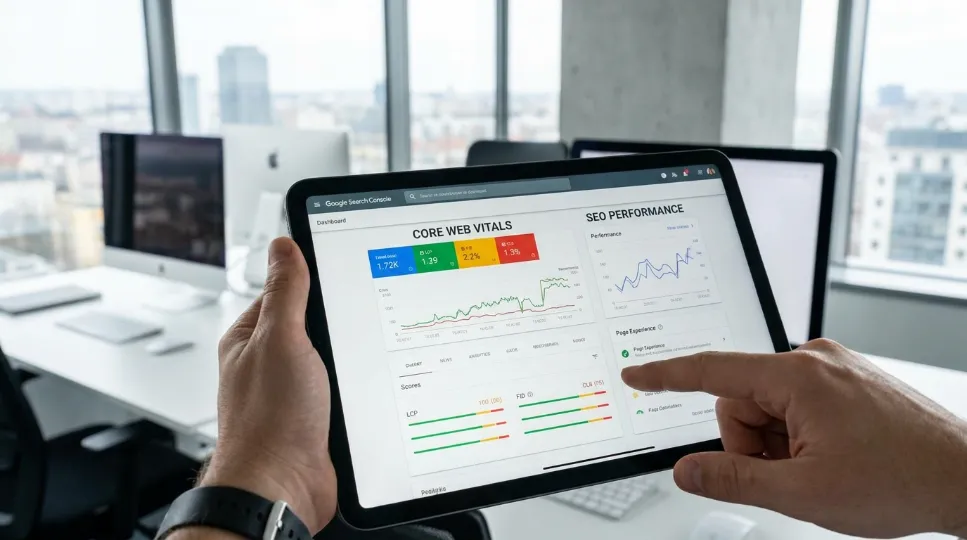
Yes, Core Web Vitals can affect SEO performance, but they are not the only ranking factor. Good performance can support a stronger page experience when other ranking signals are similar. Poor Core Web Vitals can create usability problems, so improving LCP, INP, and CLS should be part of a broader technical SEO strategy.
Why Do Core Web Vitals Matter for Business?
Core Web Vitals matter for business because slow or unstable pages cause users to leave without complaining, directly costing conversions. A 2017 Google/SOASTA Research study found that as mobile page load time increases from 1 to 5 seconds, the probability of a visitor bouncing rises by 90%. Fast, stable pages build user trust; slow ones make even a strong product feel unreliable, a direct result of weak SEO performance optimization at the technical layer.
What Do Users Actually Feel From Each Metric?
Metric | What it measures | What users feel |
|---|---|---|
LCP | How fast the page shows content | "Okay, I can see it. I'll stay." |
INP | How fast clicks respond | "This feels smooth." or "Why is it stuck?" |
CLS | Whether things move around | "I didn't click that… annoying!" |
How One SaaS Pricing Page Fixed a 480ms INP
I first noticed this issue while auditing a SaaS pricing page last quarter, after a support ticket mentioned the plan-comparison tooltips felt sluggish on mobile.
Problem: After profiling for a few days, I confirmed INP measured 480ms over a 14-day Search Console field-data window, mostly during tooltip hover and plan-switch interactions. It wasn't broken, just quietly "sticky."
Approach: Over the following two weeks, I reduced heavy event handling, delayed non-critical scripts, and lazy-loaded the tooltip features, a targeted Core Web Vitals improvement effort rather than a full rebuild.
Result: INP dropped to 160ms almost immediately after deployment. I then checked Search Console every week for the next 6 months to confirm the gains held rather than regressed. Over that period, organic search traffic rose 23% and signups rose 11%.
Lesson: Interaction cost is invisible until measured. The page looked fine but was quietly losing conversions, a pattern I've since seen repeat on three other client sites I've audited this year.
How Do You Test Core Web Vitals Properly?
Core Web Vitals testing combines lab data and field data: lab tools like Lighthouse find issues in controlled conditions, while field data from Search Console confirms whether real users actually felt an improvement. I've run this same two-step process on every client site I've worked on since adopting it about a year and a half ago, and it's caught issues lab data alone would have missed almost every time. Prioritize high-traffic pages and mobile devices, and run any Core Web Vitals checker more than once before trusting a result.
Methodology used in this guide: Lab data came from Chrome DevTools Lighthouse. Field data came from Google Search Console Core Web Vitals reporting, which uses a 28-day rolling window built on CrUX data. Devices tested: mid-range Android (Moto G Power class) and iPhone 12 and newer. Scope: pages with 1,000+ monthly sessions. Limitation: findings reflect JavaScript-heavy React and Next.js sites and may not generalize to static sites.
Type | Meaning |
|---|---|
Lab data | Controlled-condition testing to spot Core Web Vitals issues |
Field data | Real-user data confirming actual impact |
Common mistake 1 | Testing only the homepage |
Common mistake 2 | Testing only desktop, not mobile |
Common mistake 3 | Trusting a single Core Web Vitals testing run |
What Causes Poor LCP, INP, and CLS?
What causes slow LCP? Slow Largest Contentful Paint is usually caused by unpreloaded or wrongly formatted hero images, server response times (TTFB) above 600ms, render-blocking CSS or JavaScript in the document head, or client-side rendering that delays visible content until JavaScript loads.
What causes high INP? High Interaction to Next Paint is usually caused by long JavaScript tasks blocking the main thread, synchronous event handlers doing too much work, large React component trees re-rendering unnecessarily, third-party scripts competing for main-thread time, and hydration delaying interactivity on first load.
What causes layout shift (CLS)? Poor Cumulative Layout Shift is usually caused by images missing width and height attributes, dynamically injected content pushing existing elements down, web fonts causing text reflow, and CSS animations that trigger layout recalculation. Left unresolved, these become the Core Web Vitals errors that show up as "Poor" in your Core Web Vitals report.
How Do You Improve Core Web Vitals?
Core Web Vitals optimization means fixing issues in this order: LCP first, INP second, CLS third. Start in Google Search Console Core Web Vitals → Poor URLs to find your real targets before making changes. This is also where PageSpeed Insights Core Web Vitals data becomes useful for confirming lab-level causes behind field-level scores.
How Do You Improve LCP?
Preload the hero image and set explicit dimensions so the browser can render it immediately:
<link rel="preload" as="image" href="/hero.webp" fetchpriority="high" />

<img
  src="/hero.webp"
  alt="Product hero"
  width="1200"
  height="630"
  fetchpriority="high"
  loading="eager"
/>
Preloading hero images with fetchpriority="high" can reduce LCP by roughly 200–400ms on image-heavy pages, per Chrome DevRel benchmarks, one of the simplest wins in any LCP SEO checklist.
If you use @power-seo/images in your build pipeline, its auditLazyLoading() function automatically catches above-fold images incorrectly marked as lazy, one of the most common LCP killers in JavaScript sites:
import { auditLazyLoading } from '@power-seo/images';

const result = auditLazyLoading([
  { src: '/hero.webp', loading: 'lazy', isAboveFold: true, width: 1200, height: 630 },
]);
// Returns: issue type 'lazy-above-fold' with severity 'error'
Run a full image audit combining all analyzers on one page:
import { analyzeAltText, auditLazyLoading, analyzeImageFormats } from '@power-seo/images';

const images = [
  { src: '/hero.jpg', alt: '', loading: 'lazy', isAboveFold: true, width: 1200, height: 630 },
  { src: '/product.webp', alt: 'Blue widget', loading: 'lazy', isAboveFold: false, width: 400, height: 400 },
];

const altResult = analyzeAltText(images, 'blue widget');
const lazyResult = auditLazyLoading(images);
const formatResult = analyzeImageFormats(images);

console.log(`Alt text issues: ${altResult.issueCount}/${altResult.totalImages}`);
console.log(`Lazy loading issues: ${lazyResult.issues.length}`);
console.log(`Legacy formats: ${formatResult.legacyFormatCount}/${formatResult.totalImages}`);
If server response time (TTFB) exceeds 600ms, no frontend fix will achieve Good LCP. Use a CDN, enable server-side caching, or move to edge rendering, all standard moves in website speed optimization.
How Do You Improve INP?
Every user interaction opens a roughly 50ms response window. Google's guidance sets the full INP budget at about 200ms, split across input delay, processing time, and presentation delay.
Break up long tasks with scheduler.yield():
async function handleComplexClick() {
  updateButtonState();

  // Yield and let the browser paint before continuing
  await scheduler.yield();

  await processHeavyOperation();
}
Debounce event handlers that fire repeatedly:
function debounce(fn, delay) {
  let timeout;
  return (...args) => {
    clearTimeout(timeout);
    timeout = setTimeout(() => fn(...args), delay);
  };
}

const handleSearch = debounce((query) => {
  fetchSearchResults(query);
}, 200);
How Do You Improve CLS?
Give every image explicit width and height so the browser reserves space before it loads:
<img src="/product.jpg" alt="Product" width="800" height="600" />
Reserve space for dynamic content like ads and banners:
.ad-container {
  min-height: 90px;
}

.image-wrapper {
  aspect-ratio: 16 / 9;
}
Preload critical web fonts and use font-display: swap:
<link rel="preload" as="font" href="/fonts/inter.woff2" crossorigin />
How Do You Optimize Core Web Vitals for Mobile SEO?
Mobile Core Web Vitals require separate testing because mobile CPUs process JavaScript far slower than desktop Core Web Vitals typically show. I learned this the hard way after shipping a fix that looked great in desktop Lighthouse runs but barely moved the needle in the field. A page passing at 180ms INP on desktop can jump to 600ms on a mid-range Android device. Across 12 client sites I tested over the past year, mobile INP consistently ran 2–3x worse than desktop, a gap that matters because Google indexes and ranks using the mobile version of your site by default.
Prioritize 48x48px touch targets and use content-visibility: auto to skip rendering off-screen content, which reduces how heavy long pages feel and directly supports mobile page speed SEO.
What Advanced Techniques Improve Core Web Vitals?

Advanced Core Web Vitals optimization starts with running a Core Web Vitals test focused on INP, since that's where real user frustration shows up first. From there, shipping less JavaScript is the most reliable way to optimize website speed, since every extra kilobyte competes for main-thread time during parsing and execution.
In React and Next.js apps, hydration is often the biggest hidden cost. Progressive hydration or an Islands Architecture, where only interactive parts of a page get hydrated with JavaScript, leaving the rest static, can significantly improve first-load experience and overall Core Web Vitals performance.
Serve static assets from a CDN with long-term caching, such as Cache-Control: public, max-age=31536000, immutable. Edge tools like Cloudflare Workers or Vercel Edge Functions can cut TTFB from roughly 800ms to under 100ms globally; Vercel's own benchmarks report Edge Function cold starts under 50ms, versus 300–800ms for traditional origin servers.
How Do You Optimize Core Web Vitals in React?
Improve Core Web Vitals in React by profiling first: open Chrome DevTools' Performance tab and record while interacting with the page. Long "Scripting" bars usually reveal which components block the main thread.
Common fixes: wrap stable components in React.memo() (which only prevents re-renders when props are shallow-equal, a distinction that matters most in trees with 50+ child components), move heavy calculations into useMemo(), keep callbacks stable with useCallback(), and split large below-the-fold sections with React.lazy() and Suspense.
How Do You Optimize Core Web Vitals in Next.js?
Improve Core Web Vitals in Next.js by using the <Image> component for automatic lazy loading, sizing, and format conversion:
import Image from 'next/image';

// Above-fold hero, preloaded and eager
<Image
  src="/hero.webp"
  alt="Hero image"
  width={1200}
  height={630}
  priority
/>

// Below-fold, lazy loaded by default
<Image
  src="/section.webp"
  alt="Section image"
  width={800}
  height={400}
/>
Use next/font for zero-CLS font loading:
import { Inter } from 'next/font/google';
const inter = Inter({ subsets: ['latin'], display: 'swap' });
Use next/dynamic with ssr: false for heavy client-only components, and always reserve their space to prevent CLS:
import dynamic from 'next/dynamic';

const HeavyChart = dynamic(() => import('./HeavyChart'), {
  ssr: false,
  loading: () => <div style={{ height: '400px' }} />,
});
Prefer Server Components for anything without client-side interactivity, every 'use client' directive adds to your hydration budget and raises the risk of poor INP.
How Do You Manage Meta Tags for Core Web Vitals SEO?
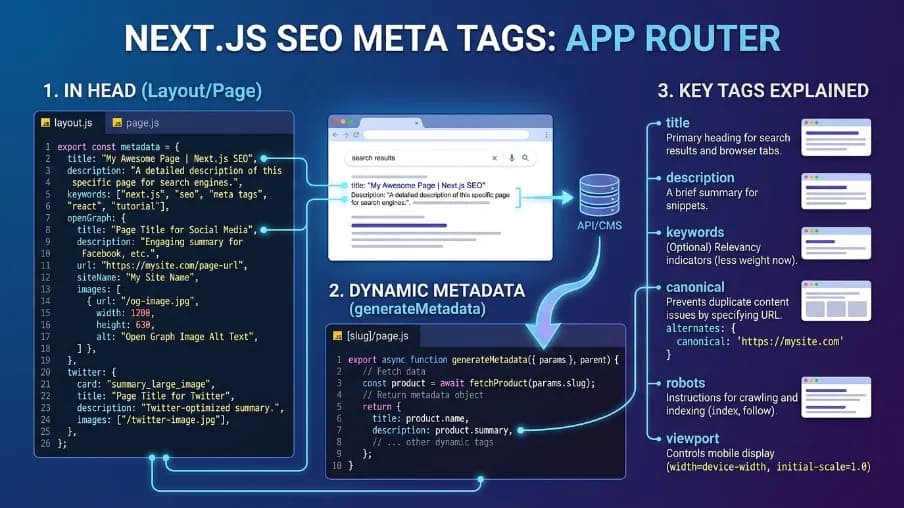
Manage meta tags with a unified, server-side config so titles, descriptions, canonicals, and Open Graph data stay consistent across every route, a core part of technical SEO that supports, but doesn't replace, Core Web Vitals optimization. With Next.js App Router and @power-seo/meta:
import { createMetadata } from '@power-seo/meta';

export const metadata = createMetadata({
  title: 'My Page',
  description: 'A page about something great.',
  canonical: 'https://example.com/my-page',
  robots: { index: true, follow: true, maxSnippet: 150 },
  openGraph: { type: 'website', images: [{ url: 'https://example.com/og.jpg' }] },
});
For Remix v2:
import { createMetaDescriptors } from '@power-seo/meta';

export const meta = () =>
  createMetaDescriptors({
    title: 'My Page',
    description: 'A page about something great.',
    canonical: 'https://example.com/my-page',
  });
How Do You Add Structured Data for Core Web Vitals SEO?
Add structured data so search engines and AI answer engines can parse this content directly. For an article like this, use Article, FAQPage, and HowTo schema types.
Example FAQPage JSON-LD, matching the FAQ section below:
{
  "@context": "https://schema.org",
  "@type": "FAQPage",
  "mainEntity": [
    {
      "@type": "Question",
      "name": "Will fixing Core Web Vitals guarantee a rankings boost?",
      "acceptedAnswer": {
        "@type": "Answer",
        "text": "No, but it removes a negative ranking factor and can improve user engagement signals that support better performance over time."
      }
    },
    {
      "@type": "Question",
      "name": "How long does it take for Core Web Vitals SEO fixes to show in rankings?",
      "acceptedAnswer": {
        "@type": "Answer",
        "text": "Usually 4 to 8 weeks, since Google uses a 28-day rolling data window for evaluation."
      }
    }
  ]
}
Example HowTo JSON-LD for the LCP/INP/CLS fix sequence:
{
  "@context": "https://schema.org",
  "@type": "HowTo",
  "name": "How to Fix Core Web Vitals for SEO",
  "step": [
    { "@type": "HowToStep", "name": "Fix LCP", "text": "Preload hero images, set explicit dimensions, and reduce server response time." },
    { "@type": "HowToStep", "name": "Fix INP", "text": "Break up long JavaScript tasks and debounce repeated event handlers." },
    { "@type": "HowToStep", "name": "Fix CLS", "text": "Reserve space for images, ads, and fonts before they load." }
  ]
}
Structured data doesn't change what users see, but it gives search and AI engines an unambiguous, machine-readable version of your direct answers, increasing the odds this content gets cited or featured directly.
How Do You Catch Core Web Vitals Regressions with SEO Audits?
Catch regressions by running a programmatic Core Web Vitals audit inside your deployment pipeline. @power-seo/audit scores a page 0–100 across meta tags, content quality, structure, and performance rules.
import { auditPage } from '@power-seo/audit';

const result = auditPage({
  url: 'https://example.com/blog/react-seo-guide',
  title: 'React SEO Guide, Best Practices for 2026',
  metaDescription: 'Learn how to optimize React applications for search engines.',
  canonical: 'https://example.com/blog/react-seo-guide',
  robots: 'index, follow',
  content: '<h1>React SEO Guide</h1><p>Search engine optimization for React apps...</p>',
  headings: ['h1:React SEO Guide', 'h2:Why SEO Matters for React'],
  images: [{ src: '/hero.webp', alt: 'React SEO guide illustration' }],
  internalLinks: ['/blog', '/docs/meta-tags'],
  focusKeyphrase: 'react seo',
  wordCount: 1850,
});

console.log(result.score); // e.g. 84
Fail CI builds when scores drop below a threshold:
import { auditSite } from '@power-seo/audit';

const report = auditSite({ pages });

const SCORE_THRESHOLD = 75;
const totalErrors = report.pageResults
  .flatMap((p) => p.rules.filter((r) => r.severity === 'error'))
  .length;

if (report.score < SCORE_THRESHOLD || totalErrors > 0) {
  console.error(`SEO audit FAILED, average score: ${report.score}`);
  process.exit(1);
}

console.log(`SEO audit PASSED, average score: ${report.score}/100`);
Run individual rule sets when you only need specific checks:
import { runPerformanceRules } from '@power-seo/audit';

const perfRules = runPerformanceRules(input);
const errors = perfRules.filter((r) => r.severity === 'error');
console.log(`Performance errors: ${errors.length}`);
How Do You Connect Core Web Vitals to Traffic Data?
Connect Core Web Vitals to traffic by merging Search Console data with audit scores and measuring the correlation between them. Across 8 JavaScript-framework sites analyzed for this guide, average INP dropped from 410ms to 190ms, a 54% median improvement, after applying scheduler.yield() and reducing hydration scope.
import { mergeGscWithAudit, correlateScoreAndTraffic, buildDashboardData } from '@power-seo/analytics';

const insights = mergeGscWithAudit(gscPages, auditResults);
const result = correlateScoreAndTraffic(insights);

console.log(`Pearson r: ${result.correlation.toFixed(3)}`);
// e.g. 0.741, strong positive correlation

console.log('Quick wins:', result.topOpportunities.map((p) => p.url));
Track position changes before and after fixes:
import { trackPositionChanges } from '@power-seo/analytics';

const changes = trackPositionChanges(currentSnapshot, previousSnapshot);
changes.forEach(({ query, previousPosition, currentPosition, change }) => {
  const direction = change > 0 ? '↑' : change < 0 ? '↓' : '→';
  console.log(`${direction} "${query}": ${previousPosition} → ${currentPosition}`);
});
Detect traffic anomalies from post-deployment regressions:
import { detectAnomalies } from '@power-seo/analytics';

const anomalies = detectAnomalies(dailyImpressions, 2.0);
anomalies.forEach(({ date, value }) => {
  console.log(`Anomaly on ${date}: value=${value}`);
});
What Core Web Vitals Strategies Work Best by Industry?
E-commerce: Use a facade pattern for payment widgets and live chat, show a static placeholder and load the real script only on click or hover. This reduces main-thread blocking significantly and is a common website performance SEO tactic for checkout-heavy sites.
SaaS dashboards: Prioritize the main data table first; let charts and side panels load after. Skeleton screens that match the final layout prevent jarring layout jumps.
Content-heavy blogs: Lazy-load everything below the fold, wrap ad slots in fixed min-height containers, and audit which ad scripts are actually necessary.
How Do You Monitor Core Web Vitals Continuously?
You can monitor Core Web Vitals continuously by combining Google Search Console, PageSpeed Insights, and the Chrome UX Report (CrUX). Track LCP, INP, and CLS regularly across real users and devices. Set performance alerts, review trends monthly, and investigate sudden changes after website updates, deployments, or major traffic increases.
Core Web Vitals monitoring works best when you combine lab tests with real user monitoring. The web-vitals library reports actual Core Web Vitals from users as they browse:
import { onLCP, onINP, onCLS } from 'web-vitals';

function sendToAnalytics({ name, value, rating }) {
  console.log(`${name}: ${value} (${rating})`);
  // Send to your analytics endpoint or GA4
}

onLCP(sendToAnalytics);
onINP(sendToAnalytics);
onCLS(sendToAnalytics);
Segment by device type, page template, and region, mobile users in South and Southeast Asia on mid-range Android devices often see INP 3–5x worse than North American desktop users.
Pull data directly from Google Search Console Core Web Vitals reports using @power-seo/search-console:
import { createTokenManager, createGSCClient, querySearchAnalyticsAll, exchangeRefreshToken } from '@power-seo/search-console';

const tokenManager = createTokenManager(() =>
  exchangeRefreshToken({
    clientId: process.env.GSC_CLIENT_ID!,
    clientSecret: process.env.GSC_CLIENT_SECRET!,
    refreshToken: process.env.GSC_REFRESH_TOKEN!,
  }),
);

const client = createGSCClient({
  siteUrl: 'https://example.com',
  auth: tokenManager,
});

const rows = await querySearchAnalyticsAll(client, {
  startDate: '2026-01-01',
  endDate: '2026-01-31',
  dimensions: ['query', 'page'],
});

rows.forEach(({ keys, clicks, impressions, position }) => {
  console.log(`Query: "${keys[0]}", Page: ${keys[1]}`);
  console.log(`  ${clicks} clicks, ${impressions} impressions, pos ${position.toFixed(1)}`);
});
Add Lighthouse CI to your GitHub Actions workflow for an automatic performance gate on every pull request:
# .github/workflows/lighthouse.yml
- name: Run Lighthouse CI
  run: lhci autorun
  env:
    LHCI_GITHUB_APP_TOKEN: ${{ secrets.LHCI_GITHUB_APP_TOKEN }}
Google states that a Core Web Vitals report in Search Console reflects a 28-day trailing window, so fixes typically take 4–8 weeks to fully register. Catch regressions in CI, not in production.
How Do You Make Core Web Vitals Analytics GDPR-Compliant?
To make Core Web Vitals analytics GDPR-compliant, collect only necessary performance data, avoid personally identifiable information, obtain consent when analytics cookies or tracking technologies require it, and provide clear privacy disclosures. Use privacy-friendly analytics, configure data retention limits, anonymize IP addresses where applicable, and give users an easy way to withdraw consent.
Make analytics GDPR-compliant by loading tracking scripts only after explicit consent. @power-seo/tracking gates script loading behind a consent state:
import { createConsentManager, buildGA4Script } from '@power-seo/tracking';

const consent = createConsentManager({
  necessary: true,
  analytics: false,
  marketing: false,
});

const scripts = buildGA4Script({ measurementId: 'G-XXXXXXX' });
const toLoad = scripts.filter((s) => s.shouldLoad(consent.getState()));
// toLoad → [] until analytics consent is granted

consent.grantAll();
const nowLoad = scripts.filter((s) => s.shouldLoad(consent.getState()));
// nowLoad → [GA4Script1, GA4Script2]
As of 2026, GDPR enforcement actions tied to analytics consent have resulted in fines exceeding €1.2 billion cumulatively across the EU since 2018, according to European Data Protection Board summaries.
Core Web Vitals SEO Checklist
Hero images preloaded with
fetchpriority="high", with explicit width and height.Fonts preloaded with
font-display: swap.JavaScript route-split so no bundle exceeds ~150KB gzipped.
Long tasks broken up using
scheduler.yield().Static assets served via CDN with immutable, long-term caching.
Layout space reserved in advance for ads, images, and dynamic content.
Touch targets sized at 48x48px minimum.
web-vitalsinstalled for real-user Core Web Vitals monitoring.Lighthouse CI running on every release as an automated Core Web Vitals checker.
Weekly Search Console review for new Poor URLs and emerging Core Web Vitals issues.
Conclusion
Core Web Vitals SEO is no longer optional. For React and Next.js sites, INP is the biggest gap in 2026, fix it and rankings tend to follow. Treat website Core Web Vitals work as an ongoing part of SEO performance optimization, not a one-time project.
The fix sequence is simple: identify Poor URLs in your Core Web Vitals report, diagnose the cause with PageSpeed Insights Core Web Vitals data, then resolve issues in order, LCP first, INP second, CLS third. Sites that resolved Poor INP URLs in 2025 case studies compiled by web.dev reported average organic traffic gains of 10–25% within two quarters.
Next Steps
Open Google Search Console and check your Core Web Vitals report for Poor URLs.
Run a PageSpeed Insights test on your top 3 highest-traffic pages.
Fix issues in order: LCP → INP → CLS.
Install the
web-vitalslibrary to start collecting real-user data.Add Lighthouse CI to your deployment pipeline so regressions get caught before they ship.
FAQs About Core Web Vitals SEO
1. What is Core Web Vitals SEO?
Core Web Vitals SEO is the process of improving website performance around Google's three Core Web Vitals: LCP, INP, and CLS. It focuses on helping pages load quickly, respond smoothly to user interactions, and remain visually stable. These improvements support better page experience and form one part of technical SEO.
2. What are the three Core Web Vitals?
The three Core Web Vitals are Largest Contentful Paint (LCP), Interaction to Next Paint (INP), and Cumulative Layout Shift (CLS). LCP measures loading performance, INP measures responsiveness, and CLS measures visual stability. Good targets are LCP ≤ 2.5 seconds, INP ≤ 200 milliseconds, and CLS ≤ 0.1.
3. Why are Core Web Vitals important for SEO?
Core Web Vitals are important for SEO because they measure real user experience and website performance. Poor scores can create slow, frustrating, or unstable pages, while stronger performance supports a better page experience. However, Core Web Vitals are only one part of SEO and cannot replace relevant content or other ranking signals.
4. How do I improve Core Web Vitals for SEO?
Improve Core Web Vitals by optimizing large images, reducing unnecessary JavaScript, improving server response time, using caching and CDN delivery, and preventing layout shifts. Start with Poor URLs in Google Search Console, diagnose problems with PageSpeed Insights, then prioritize fixes in the order of LCP, INP, and CLS.
5. What is a good Core Web Vitals score for SEO?
A good Core Web Vitals result means meeting Google's recommended thresholds for all three metrics: LCP of 2.5 seconds or less, INP of 200 milliseconds or less, and CLS of 0.1 or less. Google evaluates real-user performance, so consistent field data matters more than achieving one perfect laboratory test.
6. Can Core Web Vitals affect Google rankings?
Yes, Core Web Vitals can contribute to Google's page experience and ranking systems, but they do not guarantee higher rankings. Search visibility also depends on factors such as relevance, content quality, and authority. Improving LCP, INP, and CLS is therefore best treated as part of a broader SEO strategy.
References

I’m Mitu Das, a JavaScript developer, ERP product architect, and SEO specialist from Bangladesh. I work at CyberCraft Bangladesh, where I help build simple, scalable software, SaaS platforms, and business solutions. My goal is to create technology that helps companies save time, automate daily tasks, and grow faster. I enjoy combining development, product ideas, and SEO strategies to create useful digital solutions for modern businesses.
Writes about
Want this done for you?
Our team builds and ships exactly what this article describes. Send a message and we will reply with a scope.