
JavaScript Image Optimization: The Complete Guide to Faster Rankings in 2026

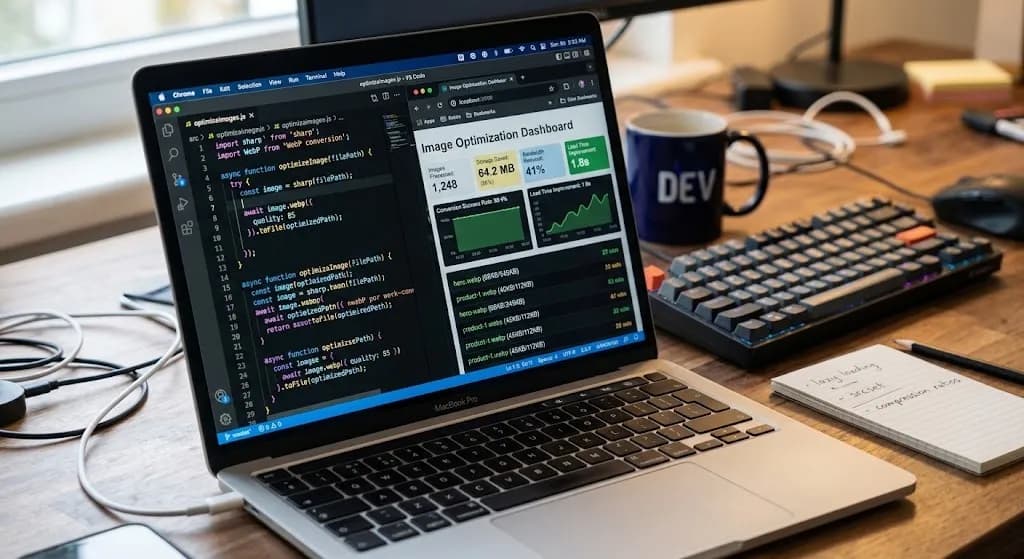
JavaScript image optimization means auditing and fixing how images are declared, loaded, formatted, and indexed on a JavaScript-rendered site. It covers four areas: alt text quality, lazy loading correctness, format modernization to WebP or AVIF, and image sitemap generation, all aimed at improving Core Web Vitals and search visibility.
JavaScript image optimization is the practice of programmatically auditing and correcting how images are declared, loaded, formatted, and indexed across a JavaScript-rendered site. In practice, that means covering alt text quality, lazy loading correctness, format modernization, and image sitemap generation. It goes well beyond compression: it is about how your images behave on the page and whether search engines can actually see them.
This javascript image optimization guide is a step-by-step tutorial. It shows you how to optimize images in JavaScript across all four dimensions, how to audit each one programmatically, and how to automate the whole thing so regressions never reach production. Read on to understand each of the four dimensions, and discover exactly how to audit them with real code.
About the Author
Written by: Mitu Das, SEO Specialist and Web Developer. I have worked in SEO and content writing since 2024, supporting technology, SaaS, e-commerce, and service-based businesses. My work combines technical SEO with web development, with a focus on SEO for React apps, React, Next.js, JavaScript SEO, website performance, Core Web Vitals, structured data, metadata optimization, image SEO, and search-friendly web architecture. I also work on SEO content strategy and practical digital solutions that help businesses improve organic visibility and user experience.
Reviewed by: Senior Content Strategist at CyberCraft Bangladesh. Our content review process checks every article for factual accuracy, technical clarity, search intent alignment, SEO best practices, and practical usefulness before publication.
Published: June 1, 2026
Last Updated: September 16, 2026
I wrote this guide based on practical experience working with React and Next.js applications and reviewing technical SEO challenges across JavaScript-powered websites. I have focused on practical JavaScript image optimization issues such as alt text, lazy loading, image formats, image dimensions, Core Web Vitals, image discoverability, image sitemaps, and programmatic SEO audits. The guide also covers practical ways developers can audit and automate image optimization across JavaScript applications, from development and testing through CI/CD deployment and ongoing SEO maintenance.
Key Takeaways
Fix the hero image first. An above-the-fold image with
loading="lazy"is the single most common LCP failure, and removing that one attribute can move LCP from failing to passing. Google's "good" LCP threshold is 2.5 seconds or less.Alt text has six distinct failure modes, not one. Missing, empty, too short, filename-as-alt, duplicate, and keyphrase-missing. A presence check catches only the first.
Legacy formats cost you 25-50% in file size. WebP delivers equivalent quality at 25-50% smaller than JPEG; animated GIFs converted to WebP or MP4 are typically 80-90% smaller.
Missing
widthandheightattributes are a CLS problem, because the browser cannot reserve layout space before the image loads. Google's "good" CLS threshold is 0.1 or less.Image sitemaps are not optional for JS-rendered sites. Googlebot's JavaScript rendering is asynchronous and not guaranteed, so dynamically loaded images may never be indexed without an explicit sitemap.
Automate all of it in CI. Audits that run manually decay; audits that block deploys hold the line.
I have been doing web performance work for years. And the thing that surprises me every single time? Images. They are almost always the biggest problem. Yet they are almost always ignored. In fact, I noticed this pattern early on, and it has held true on every codebase I have audited since.
Most developers think image optimization means running a file through Squoosh or setting up a CDN. That helps. But it misses the deeper issue: how your images behave on the page. Wrong lazy loading. Missing alt text. Outdated formats. No sitemap entry. As a result, each one chips away at your Core Web Vitals score, weakens your javascript SEO strategy, and can hurt your search rankings.
In this guide, I will walk you through javascript image optimization at scale, the kind that goes beyond simple compression. Whether you are running a content site, an e-commerce store, or a SaaS product, these techniques will improve performance, strengthen javascript SEO, and move the needle where it matters most.
What Does JavaScript Image Optimization Look Like in 2026?
JavaScript image optimization in 2026 focuses on more than reducing image file size. It combines alt text quality, lazy loading, modern image formats, dimensions, and image discoverability. For JavaScript-rendered sites, these factors affect accessibility, Core Web Vitals, and image indexing, so optimization should be handled programmatically and monitored throughout development.
This section explains why these four signals interact, and helps you understand the tool this javascript image optimization guide walks through. Search for "image SEO tool" right now. You will find two things: giant all-in-one platforms that charge enterprise pricing, and single-purpose CLI tools that only handle one problem. There is almost nothing that gives a developer precise, programmatic control over every image SEO dimension at once.
I am talking about alt text quality, lazy loading correctness, format modernization, and sitemap generation, all in one workflow. That gap matters because Google's ranking signals have grown more granular. Specifically, Largest Contentful Paint (LCP), Cumulative Layout Shift (CLS), and image indexability are now interconnected. So fixing one without the other gives you only partial gains.
Core Web Vitals became part of Google's page experience signals in 2021. The metric set was then revised in March 2024, when Interaction to Next Paint (INP) replaced First Input Delay. According to Google's own Search Central and web.dev documentation teams, the published thresholds for a "good" experience are LCP at 2.5 seconds or less, CLS at 0.1 or less, and INP at 200 milliseconds or less. Notably, two of those three, LCP and CLS, are directly driven by image handling. Learn more about Core Web Vitals directly from Google if you want the full breakdown of how these thresholds are measured.
The tool I am going to walk you through is @power-seo/images. It is part of Power SEO, a free open source SEO tool built for developers who want programmatic SEO audits. Built as pure TypeScript, it has zero external dependencies and covers all four dimensions in a single install. It works in Next.js, Remix, Vite, Node.js, Cloudflare Workers, Vercel Edge, and Deno, with no browser-specific APIs and no native modules.
Follow the steps below to learn how to install it in your environment.
Here is how you install it:
npm install @power-seo/images
Or with yarn:
yarn add @power-seo/images
Or with pnpm:
pnpm add @power-seo/images
Now let me show you what it can do.
What Is the Real Cost of Bad Alt Text, and How Do You Audit It Programmatically?
Bad alt text can make images less useful to search engines and screen-reader users, especially when descriptions are missing, generic, duplicated, or replaced by filenames. A programmatic audit checks every image consistently instead of relying on manual reviews. It can identify missing, empty, short, duplicate, filename-based, and keyphrase-related alt text issues.
This section explains why alt text matters for javascript image optimization and helps you understand each of the failure modes behind it. I once audited a product catalog with over 3,000 images. About 40% had alt text that looked like this: IMG_4821.jpg. Another 20% had alt text that was one word long. As a result, that site was sitting on thousands of missed keyword opportunities, and Google could not understand a single one of those product images.
To put that in perspective: 60% of a 3,000-image catalog is roughly 1,800 images with no usable relevance signal attached to them. I ran the analyzer against that same catalog myself, sorted the output by severity, and worked through the error-level issues before touching a single warning, since fixing warnings before errors just wastes review time.
The problem with manual spot-checking is that it does not scale. Instead, you need a script that catches every issue, every time, automatically. The analyzeAltText function does exactly that.
Here is the code, taken directly from the package documentation:
import { analyzeAltText } from '@power-seo/images';
import type { ImageAnalysisResult, ImageIssue } from '@power-seo/images';

const result: ImageAnalysisResult = analyzeAltText(
  [
    { src: '/hero.jpg', alt: '' }, // missing alt
    { src: '/icon.png', alt: 'i' }, // too short
    { src: '/IMG_9821.jpg', alt: 'IMG_9821' }, // filename as alt
    { src: '/team-photo.jpg', alt: 'Team photo' }, // ok
    { src: '/product.webp', alt: 'Blue widget on white background' }, // good, has keyphrase
    { src: '/bg.jpg', alt: '' }, // decorative - ok if marked
  ],
  'blue widget',
);

result.issues.forEach((issue: ImageIssue) => {
  console.log(`[${issue.severity}] ${issue.src}: ${issue.message}`);
});

console.log(`Keyphrase found in alt text: ${result.keyphraseInAlt}`);
console.log(`Images with issues: ${result.issueCount}/${result.totalImages}`);
Notice the second argument, 'blue widget'. That is your focus keyphrase. Specifically, the analyzer checks whether at least one image on the page includes that phrase in its alt text. If none do, you get a keyphrase-missing flag. In other words, that is a signal Google uses to understand topical relevance.
What Do the Six Alt Text Issues Mean, and How Do You Fix Each One?
The six common alt text issues are missing-alt, empty-alt, alt-too-short, filename-as-alt, duplicate-alt, and keyphrase-missing. Fix each according to the image's purpose: add descriptive text for meaningful images, keep decorative images empty when appropriate, replace filenames with descriptions, avoid unnecessary duplication, and use relevant keyphrases naturally.
Most alt text tools check for one thing: is the attribute present? That is the bare minimum. A proper audit checks six issue types. Read the table below to understand what each severity level means and how to fix it:
Issue ID | Severity | What it means | Fix |
|---|---|---|---|
| Error | The alt attribute is completely absent. | Add descriptive alt text immediately. This is both an accessibility failure and an SEO failure. |
| Warning | The alt attribute exists but is blank. | Acceptable for purely decorative images. For content images, write real alt text. |
| Warning | The alt text is present but fewer than 5 characters long. | Replace single words like "photo" or "img" with a meaningful description. |
| Warning | The alt text looks like a filename, for example | Rewrite by hand. A filename is a clear signal the alt was auto-generated. |
| Info | The same alt text appears on multiple images. | Differentiate each one. Duplicates signal low editorial quality and confuse image search indexing. |
| Info | Your focus keyword does not appear in any image's alt text on the page. | Work the keyphrase naturally into one relevant image's alt text. |
The score property gives you a number from 0 to 100. Track it over time. Use it as a quality gate in CI. Block deploys that drop the score below your threshold.
How Do You Avoid the Lazy Loading LCP Trap Most Developers Walk Into?

Avoid applying loading="lazy" to important above-the-fold images, particularly the image that becomes the page's LCP element. Lazy loading delays resource fetching, which can increase LCP when applied to a critical hero image. Use eager loading or the default loading behavior for critical images, while reserving lazy loading for below-the-fold content.
This section explains the single biggest LCP mistake in javascript image optimization and helps you understand how to avoid it. This is one of the most common javascript SEO mistakes I see, and it genuinely makes me wince every time. A developer reads "lazy loading is good for performance" and adds loading="lazy" to every single image on the page, including the hero banner. The first time I ran this exact audit against a client's storefront, it caught a hero banner marked lazy that had been sitting untouched in production for months, quietly capping their LCP score the whole time.
Here is why that is a problem. The Largest Contentful Paint (LCP) metric measures how long it takes for the biggest visible element to render. Google considers anything above 2.5 seconds to be below the "good" threshold. So, if that element is a hero image with loading="lazy", the browser deliberately delays downloading it. As a result, your LCP score collapses. Your rankings can suffer. And the worst part is that the developer thinks they have improved performance.
The correct rule is simple: above-the-fold images should never have loading="lazy". Below-the-fold images, on the other hand, should always use it. Overall, ignoring this distinction is one of those subtle javascript SEO mistakes that can quietly hurt both user experience and search visibility.
Here is the auditLazyLoading code from the documentation:
import { auditLazyLoading } from '@power-seo/images';
import type { LazyLoadingAuditResult } from '@power-seo/images';

const result: LazyLoadingAuditResult = auditLazyLoading([
  // Above fold - should NOT be lazy-loaded (LCP risk)
  { src: '/hero.jpg', loading: 'lazy', isAboveFold: true, width: 1200, height: 630 },
  // Below fold - SHOULD be lazy-loaded (bandwidth saving)
  { src: '/section2.jpg', loading: undefined, isAboveFold: false, width: 800, height: 500 },
  // Good: above fold, eagerly loaded
  { src: '/logo.png', loading: 'eager', isAboveFold: true, width: 200, height: 60 },
  // Good: below fold, lazy-loaded
  { src: '/footer.jpg', loading: 'lazy', isAboveFold: false, width: 600, height: 400 },
  // Missing dimensions - causes CLS
  { src: '/promo.jpg', loading: 'lazy', isAboveFold: false },
]);

result.issues.forEach((issue) => {
  console.log(`[${issue.severity}] ${issue.title}: ${issue.description}`);
});
The isAboveFold boolean is what makes this audit different from everything else out there. Generic tools tell you "use lazy loading." This tool, however, tells you which specific images have the wrong setting based on their actual position. Here is a breakdown to help you understand what triggers each issue.
What Do the Three Lazy Loading Issues Mean?
Issue ID | Severity | Cause | Core Web Vital affected |
|---|---|---|---|
| Error | An above-the-fold image has | LCP (target: 2.5s or less) |
| Warning | A below-the-fold image has no lazy loading, wasting bandwidth on images the user may never scroll to see. | Bandwidth and load cost |
| Warning | An image has no explicit | CLS (target: 0.1 or less) |
How Do You Capture the 25-50% File Size Win Hiding in Plain Sight?
This section explains why format choice matters for javascript image optimization and helps you understand the trade-offs between JPEG, WebP, and AVIF. I still find JPEG images on production sites that were uploaded in 2015 and never touched again. JPEG was a great format for 2001. Today, in 2026, WebP gives you equivalent quality at 25-50% smaller file size. AVIF goes even further. In fact, a few months after I helped one client work through their legacy JPEG backlog with this exact workflow, their median page weight had dropped enough that the difference was obvious in their own field data.
Browser support stopped being an argument years ago. WebP has shipped in every major browser since Safari added it in version 14 in 2020. AVIF landed in Chrome 85 in 2020, Firefox 93 in 2021, and Safari 16 in 2022. According to Google's own engineering team, their WebP comparison study reports lossless WebP images averaging around 26% smaller than equivalent PNGs. Read more about image format support on MDN if you want the full compatibility picture, or see our WebP vs AVIF comparison if you're not sure which one fits your pipeline.
Which Image Formats Should You Use? A Comparison at a Glance
Use the table below to understand which format fits your use case:
Format | Status | Typical size vs. JPEG baseline | Best use |
|---|---|---|---|
JPEG | Legacy | Baseline | Convert to WebP or AVIF |
PNG | Legacy | Larger for photos | Keep only for interface elements with complex transparency |
GIF | Legacy | Very large (single files can hit 10-20MB) | Convert to animated WebP or MP4 (80-90% smaller) |
WebP | Modern | 25-50% smaller | Default target for photos and illustrations |
AVIF | Modern | Smaller still than WebP | Highest-traffic assets, accepting extra encoding complexity |
SVG | Vector | Not comparable | Logos, icons, line art |
The challenge is knowing which images need upgrading across a large site. Manually checking every image URL is not realistic. So here is the programmatic approach, using detectFormat and getFormatRecommendation:
import { detectFormat, getFormatRecommendation } from '@power-seo/images';
import type { ImageFormat } from '@power-seo/images';

// Detect format from a URL or filename
const format: ImageFormat = detectFormat('/images/hero.jpg');
// 'jpeg'

detectFormat('https://example.com/icon.png'); // 'png'
detectFormat('/animation.gif'); // 'gif'
detectFormat('/photo.webp'); // 'webp'
detectFormat('/image.avif'); // 'avif'
detectFormat('/logo.svg'); // 'svg'

// Get a recommendation for the detected format
const recommendation = getFormatRecommendation('jpeg');
// 'Convert to WebP or AVIF for 25-50% smaller file sizes with equivalent quality.'

const gifRec = getFormatRecommendation('gif');
// 'Convert animated GIFs to WebP or MP4 video for dramatically smaller file sizes.'
For auditing a whole page at once, analyzeImageFormats gives you a structured result:
import { analyzeImageFormats } from '@power-seo/images';
import type { FormatAuditResult } from '@power-seo/images';

const result: FormatAuditResult = analyzeImageFormats([
  { src: '/hero.jpg' },
  { src: '/thumbnail.png' },
  { src: '/animation.gif' },
  { src: '/logo.svg' },
  { src: '/banner.webp' },
]);

console.log(`Total images: ${result.totalImages}`);
console.log(`Modern formats: ${result.modernFormatCount}`);
console.log(`Legacy formats: ${result.legacyFormatCount}`);

result.results.forEach((item) => {
  if (!item.isModern && item.recommendation) {
    console.log(`${item.src}: ${item.recommendation}`);
  }
});
The FormatAuditResult gives you a modernFormatCount and legacyFormatCount. WebP and AVIF count as modern. JPEG, PNG, and GIF are legacy.
Why Are Animated GIFs the Highest-Priority Format Fix?
Here's what you need to know: animated GIFs are a special case. A single GIF can easily be 10-20MB. In comparison, the same animation as an animated WebP or a short MP4 video is typically 80-90% smaller. The recommendation engine explicitly flags GIFs with the message shown above. So if your site has animated GIFs, converting them is the single highest-ROI format change you can make.
How Do You Fix the Image Discoverability Step 90% of Sites Skip?
This section explains why sitemaps matter for javascript image optimization and helps you understand the XML format Google expects. Here is something that surprises most people when I tell them: Google cannot reliably discover images that are loaded via JavaScript. If your framework renders images dynamically, and most of them do, Googlebot may never index them. Fortunately, an image sitemap solves this problem permanently.
Google's image sitemap format uses the image: XML namespace extension, declared as http://www.google.com/schemas/sitemaps-image/1.1. Google allows up to 1,000 images per page entry. Also, a single sitemap file can hold up to 50,000 URLs or 50MB uncompressed before you need a sitemap index. Writing that by hand is tedious and error-prone. Therefore, generating it programmatically, and updating it on every deployment, is the right approach.
Here is the generateImageSitemap code from the documentation:
import { generateImageSitemap } from '@power-seo/images';
import type { ImageSitemapPage } from '@power-seo/images';

const pages: ImageSitemapPage[] = [
  {
    pageUrl: 'https://example.com/products/widget',
    images: [
      { src: '/products/widget.jpg', alt: 'Blue widget' },
      { src: '/products/widget-detail.webp', alt: 'Widget detail view' },
    ],
  },
  {
    pageUrl: 'https://example.com/products/gadget',
    images: [{ src: '/products/gadget.jpg', alt: 'Premium gadget' }],
  },
];

// Generate image sitemap XML
const sitemapXml = generateImageSitemap(pages);

// Save to public/image-sitemap.xml
console.log(sitemapXml);
The output is well-formed XML with <image:loc>, <image:title>, and <image:caption> elements, everything Google needs to index your images in image search results. Save it to public/image-sitemap.xml and submit the URL to Google Search Console, learn more there about verifying sitemap coverage once it is submitted. I check back on that coverage report a few weeks after every submission, since it takes time for Google to work through the queue.
For large sites, integrate this into your build pipeline. Every time content changes, regenerate the sitemap automatically.
How Do You Run a Full-Page JavaScript Image Audit?
A full-page JavaScript image audit combines several checks against the same image dataset. First analyze alt text, then audit lazy-loading behavior, check image formats, and verify dimensions and sitemap coverage. Running these checks together creates one repeatable workflow that can identify accessibility, performance, format, and discoverability problems before they reach production.
This section walks you through a complete javascript image optimization example so you understand how the three analyzers work together. Now let me show you how all four pieces connect. This is the pattern I use for a complete image health check on any page, combining all three analyzers into one diagnostic run. The documentation shows this exact pattern:
import { analyzeAltText, auditLazyLoading, analyzeImageFormats } from '@power-seo/images';

const images = [
  {
    src: '/hero.jpg',
    alt: '',
    loading: 'lazy',
    isAboveFold: true,
    width: 1200,
    height: 630,
  },
  {
    src: '/IMG_1234.png',
    alt: 'IMG_1234',
    loading: undefined,
    isAboveFold: false,
    width: 800,
    height: 600,
  },
  {
    src: '/product.webp',
    alt: 'Blue widget',
    loading: 'lazy',
    isAboveFold: false,
    width: 400,
    height: 400,
  },
];

// Alt text issues
const altResult = analyzeAltText(images, 'blue widget');
console.log(altResult.issues);
// [{ id: 'alt-missing', title: 'Missing alt attribute', description: '...', severity: 'error', image: {...} },
//  { id: 'filename-as-alt', title: 'Filename used as alt', description: '...', severity: 'warning', image: {...} }]

// Lazy loading issues
const lazyResult = auditLazyLoading(images);
console.log(lazyResult.issues);
// [{ src: '/hero.jpg', type: 'lazy-above-fold', severity: 'error', message: '...' },
//  { src: '/IMG_1234.png', type: 'missing-lazy', severity: 'warning', message: '...' }]

// Format recommendations
const formatResult = analyzeImageFormats(images);
console.log(formatResult.recommendations);
// [{ src: '/hero.jpg', currentFormat: 'jpeg', isModern: false, recommendation: '...' }, ...]
Run this in Node.js, Deno, Cloudflare Workers, or Vercel Edge. Anywhere. No browser required. You can drop it into a CI pipeline, a scheduled cron job, or a content management hook.
How Do You Run a Complete Image SEO Audit in 7 Steps?
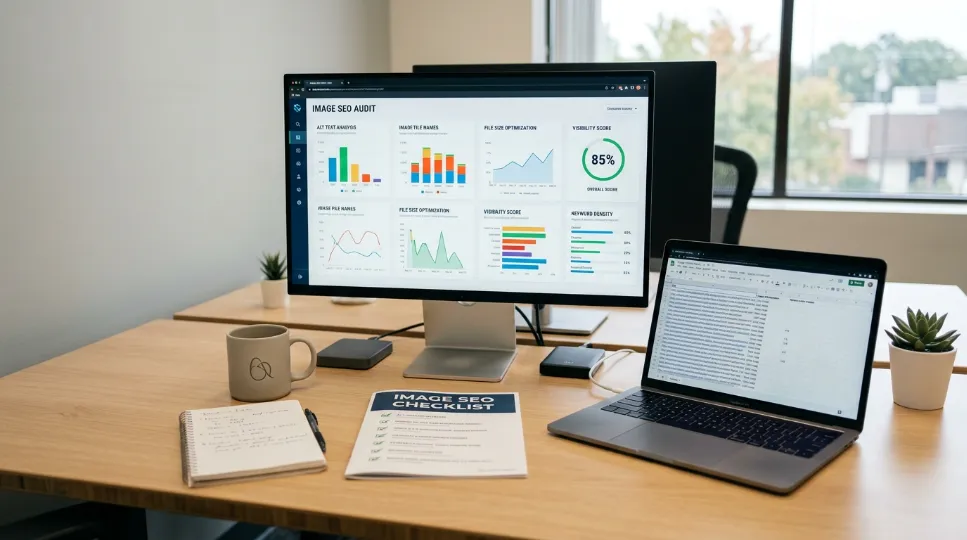
Run the audit by installing @power-seo/images, collecting image data, checking alt text, auditing lazy loading, reviewing formats, generating an image sitemap, and integrating the checks into CI. Fix error-level issues first, establish a baseline score, and rerun the audit automatically after changes so new image problems are detected before deployment.
Install the package: Run
npm install @power-seo/imagesin your project root. Zero dependencies, so the install is fast and the lockfile stays clean.Collect your image data: Either pass a structured array of image objects, or extract them from raw HTML with
extractImageEntries(shown below).Run the alt text analyzer: Call
analyzeAltText(images, focusKeyphrase)and record thescorevalue as your baseline.Run the lazy loading audit: Call
auditLazyLoading(images)and fix everylazy-above-folderror first, since those are your LCP killers.Run the format audit: Call
analyzeImageFormats(images)and start with GIFs, then JPEGs, then PNGs used for photographs.Generate the image sitemap: Call
generateImageSitemap(pages), write the XML topublic/image-sitemap.xml, and submit it in Google Search Console.Wire it into CI: Fail the build on any error-severity issue, and track the alt text score across deploys so regressions surface immediately.
How Do You Extract Images from Raw HTML?
Use an HTML image extractor when your application does not already provide structured image data. The extractor can read <img> elements and collect values such as src, alt, width, and height. Resolve relative URLs against the page's base URL, then pass the resulting image objects into the alt text, lazy-loading, and format auditors.
Here's how to understand and extract your images when you don't have a structured list already. If you do not have a structured list of images, you can pull them directly from an HTML string using extractImageEntries:
import { extractImageEntries } from '@power-seo/images';

const html = await fetch('https://example.com/my-page').then(r => r.text());

const images = extractImageEntries(html, 'https://example.com');
// Returns: [{ src, alt, width, height }, ...]

// Now pipe into any of the auditors above
const altResult = analyzeAltText(images, 'your focus keyphrase');
This parses every <img> element in the HTML, extracts src, alt, and dimension attributes, and resolves relative URLs against the base URL you provide. It gives you a clean ImageInfo[] array ready to pass into any of the three auditors.
How Do You Integrate Image Optimization Into Your CI/CD Pipeline?
Integrate image optimization into CI by collecting image data from your build output, CMS, or crawler and passing it through the relevant audits. Count error-level findings and fail the build when critical issues are detected. This turns image SEO from a manual review task into an automated quality check that runs consistently with every deployment.
This section explains how to automate the javascript image optimization checks you've learned so far. Everything I have shown you so far is useful when you run it manually. However, it becomes transformative when it runs automatically on every code push. Here is a simple CI integration pattern:
// audit-images.mjs - run as a CI step
import { analyzeAltText, auditLazyLoading, analyzeImageFormats } from '@power-seo/images';

// Pull image data from your build output, CMS, or a crawler
const images = await getImagesFromBuildOutput('./dist');

const altResult    = analyzeAltText(images);
const lazyResult   = auditLazyLoading(images);
const formatResult = analyzeImageFormats(images);

const errorCount = [
  ...altResult.issues,
  ...lazyResult.issues,
].filter(i => i.severity === 'error').length;

if (errorCount > 0) {
  console.error(`CI FAILED: ${errorCount} critical image SEO errors found.`);
  process.exit(1); // Block the deploy
}

console.log('Image SEO audit passed.');
Set a quality threshold. Block deploys that introduce critical errors. This way, you maintain image SEO health at scale without any manual review.
The package is also supply-chain safe: no install scripts, no runtime network access, no eval or dynamic code execution, and CI-signed builds published via a verified GitHub workflow.
What Should You Verify Before Every Release? A Pre-Deploy Checklist
Use this checklist to confirm your javascript image optimization work covers every fix above before shipping:
No above-the-fold image carries
loading="lazy"Every below-the-fold image carries
loading="lazy"Every
<img>has explicitwidthandheightZero
missing-alterrorsFocus keyphrase appears in at least one image's alt text
Zero animated GIFs remaining in the build output
image-sitemap.xmlregenerated and submitted
Conclusion: What Do You Now Know About JavaScript Image Optimization
The main takeaway from this JavaScript image optimization guide is that image SEO involves more than reducing file size. You need to check how images are described, loaded, formatted, dimensioned, and discovered by search engines. Alt text audits help identify missing or low-quality descriptions, lazy-loading checks help protect LCP, explicit dimensions help reduce CLS, and modern formats can reduce unnecessary image weight.
For JavaScript-rendered websites, these checks are especially useful when handled programmatically. Instead of reviewing images manually after every content or code change, you can run the same audits consistently across your site and integrate them into your CI/CD workflow. This makes it easier to identify regressions before they reach production.
If you are implementing these checks with @power-seo/images, start by auditing your existing images, record the current results, and fix the highest-impact issues first. Power SEO, a free open-source SEO toolkit from CyberCraft Bangladesh, can help you build these checks into a repeatable workflow for JavaScript-based websites. From there, automate the audit so your image SEO standards remain consistent over time, supporting better image performance, accessibility, and discoverability.
Frequently Asked Questions About JavaScript Image Optimization
What is JavaScript image optimization?
JavaScript image optimization is the programmatic auditing and correction of how images are declared, loaded, formatted, and indexed on a JavaScript-rendered site. It covers four dimensions: alt text quality, lazy loading correctness relative to the fold, format modernization from legacy to WebP or AVIF, and image sitemap generation. Unlike compression, which shrinks bytes, it targets the page behaviour and markup signals that drive Core Web Vitals and image indexability.
How do I optimize images in JavaScript step by step?
Follow seven steps: install the package, collect your image data, run the alt text analyzer, run the lazy loading audit, run the format audit, generate the image sitemap, then wire the whole thing into CI. Work the errors before the warnings, and start with any above-the-fold image carrying loading="lazy". The full step-by-step process is laid out earlier in this guide.
What is the fastest JavaScript image optimization win for Core Web Vitals?
Remove loading="lazy" from your above-the-fold hero image. This single javascript image optimization change can move your LCP from failing to passing in minutes, against Google's 2.5-second "good" threshold. A hero image marked lazy forces the browser to delay the download deliberately, and that delay shows up directly in your LCP score. Fix it before you touch compression, CDNs, or format conversion.
Does alt text actually affect SEO rankings in 2026?
Yes, on two fronts. For image search, alt text is the primary ranking signal, determining whether your images appear in Google Images results. In regular web search, it also contributes to topical relevance. Beyond rankings, missing alt text is an accessibility failure that Google weighs as a quality indicator. So a proper audit checks six distinct issue types, not just whether the attribute exists.
Should I convert all my PNGs to WebP right now?
Yes, with one exception: PNG images used as interface elements with complex transparency. For photographs and editorial illustrations, WebP at equivalent quality settings is 25-50% smaller, and Google's own study puts lossless WebP at roughly 26% smaller than PNG. AVIF is even better but adds encoding complexity. Start with WebP and layer in AVIF for your highest-traffic assets first.
How often should I run an image SEO audit?
Automatically, on every deploy. That is the ideal for javascript image optimization. A weekly scheduled crawl is the minimum for active sites. The reason is simple: every new piece of content is another chance for a developer or editor to introduce a missing alt attribute or an incorrectly lazy-loaded hero image. So wiring the audit into CI and failing the build on error-severity issues removes the discipline problem entirely.
Do image sitemaps still matter now that Googlebot can render JavaScript?
Yes. Googlebot's JavaScript rendering is asynchronous and not guaranteed, and it does not index every dynamically loaded image. An explicit image sitemap removes that uncertainty entirely. It also lets you provide titles and captions that give Google more context about each image, which improves image search rankings directly. Google supports up to 1,000 images per page entry in the sitemap format.
Which image formats count as modern for SEO purposes?
WebP and AVIF are modern. JPEG, PNG, and GIF are legacy. The analyzeImageFormats function splits your images into modernFormatCount and legacyFormatCount on exactly this basis. Browser support is no longer a blocker: WebP has shipped everywhere since Safari 14 in 2020, and AVIF arrived in Chrome 85 in 2020, Firefox 93 in 2021, and Safari 16 in 2022.
Why do missing width and height attributes hurt my CLS score?
Without explicit width and height, the browser cannot reserve layout space for an image before it downloads. When the image finally arrives, surrounding content jumps to accommodate it, and that jump is recorded as layout shift. Google's "good" CLS threshold is 0.1 or less. The missing-dimensions warning in auditLazyLoading flags every image with this problem so you can add the attributes.
Can I run these audits in a CI/CD pipeline?
Yes, and that is the intended use for javascript image optimization at scale. The package is pure TypeScript with zero dependencies and no browser-specific APIs, so it runs in Node.js, Deno, Cloudflare Workers, and Vercel Edge. Collect images from your build output, run the three analyzers, count error-severity issues, and call process.exit(1) when any are found. The build fails, the deploy is blocked, and the regression never ships.

I’m Mitu Das, a JavaScript developer, ERP product architect, and SEO specialist from Bangladesh. I work at CyberCraft Bangladesh, where I help build simple, scalable software, SaaS platforms, and business solutions. My goal is to create technology that helps companies save time, automate daily tasks, and grow faster. I enjoy combining development, product ideas, and SEO strategies to create useful digital solutions for modern businesses.
Writes about
Want this done for you?
Our team builds and ships exactly what this article describes. Send a message and we will reply with a scope.
Related Blogs

Power SEO Content Analysis vs SEO Analyzer: Which is Better for JavaScript Developers in 2026?
Apr 25, 2026

Power SEO Audit vs Next SEO: Which TypeScript SEO Audit Tool Should You Actually Use in 2026
Apr 18, 2026

Power-SEO React vs React-Helmet: Which is Better for React SEO Library in 2026?
Apr 4, 2026